Settings & Administration
Two settings areas exist, and the distinction matters:
- Organisation settings (sidebar → Organisation settings) applies to everyone. Which sections you see depends on your role: General and Desktop policy need owner or admin, Working calendar also admits managers, and a team manager sees Desktop policy and Alert rules scoped to their own team.
- Account settings (your avatar → Account settings) applies only to you. Everyone has these.
General
Owner and admin only.
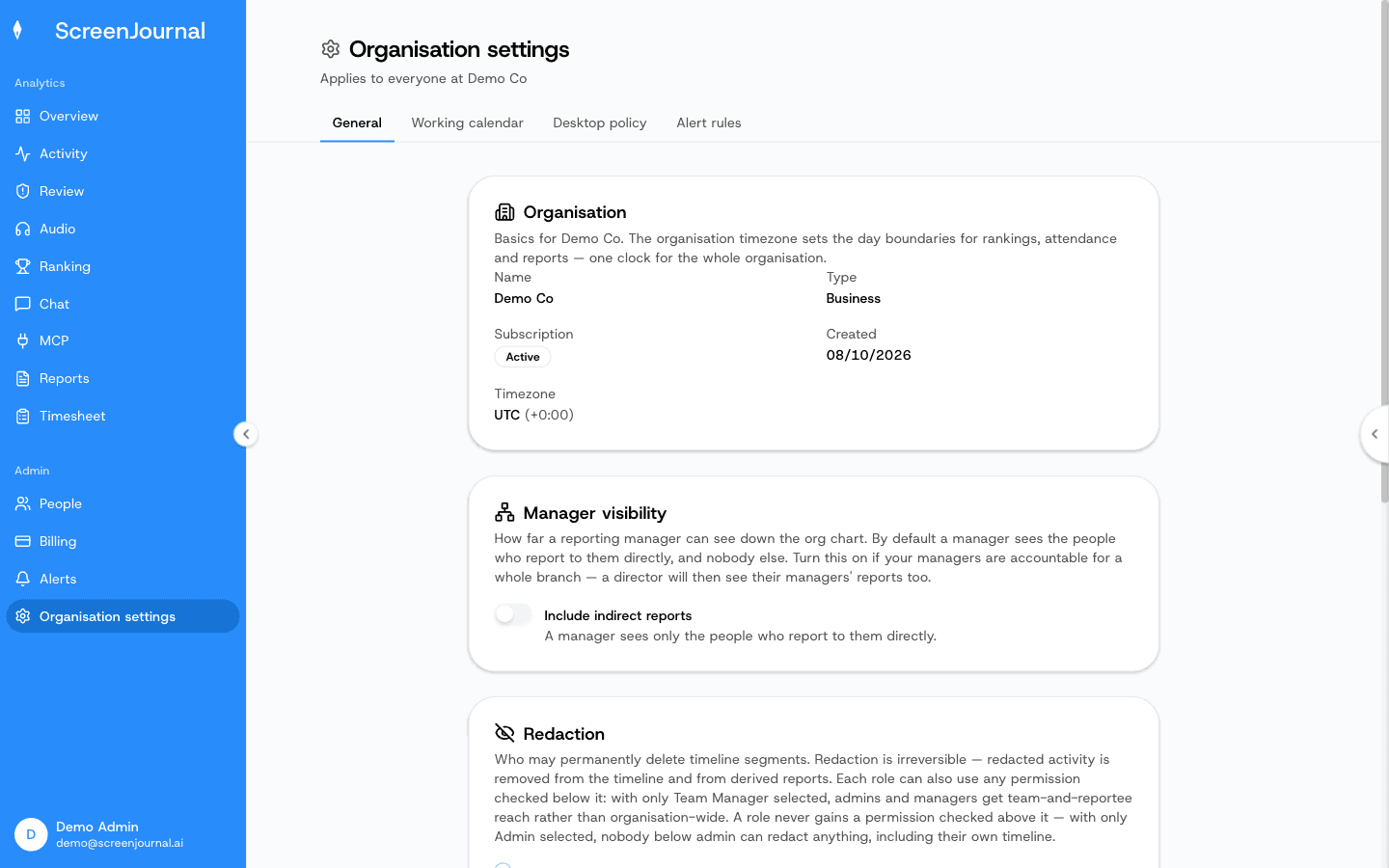
- Organisation — name, type, subscription, creation date, and the organisation timezone: the clock used to cut days for rankings, attendance, reports and timesheets. One clock for the whole organisation keeps everyone's numbers comparable; individuals choose their own display timezone under Account → Preferences.
- Compliance — the Primary jurisdiction where most of your monitored team works. It drives which monitoring notices apply.
- Manager visibility — how far a reporting manager can see down the org chart. By default they see their direct reports only; Include indirect reports extends it to the whole chain beneath them.
- Redaction — who may permanently delete timeline segments: Admin, Manager, Team Manager and/or Employee (own timeline). Each checked box also applies to the roles above it. Nothing is checked by default, so nobody can redact until you decide.
Working calendar
Owner, admin and manager.
- Working days — a Monday-to-Sunday strip; click a day to toggle it between working every week and off. Days that need a pattern ("Saturdays, 1st, 4th and 5th of the month", or "every second week from a start date") are added as custom schedules and marked with a dot.
- Holidays — dates with a label ("Diwali").
- Per team — each team either Follows organisation calendar or has a Custom calendar with its own days, plus extra holidays on top of the organisation's.
Attendance, the productivity report, the timesheet and Overview all follow
this calendar; non-working days appear as WO in exports. Until something
is saved here, no day is treated as a day off.
Desktop policy
Owner and admin set the organisation policy and any team's; a team manager edits only their own team's slice. At team scope every field is either Inherit (follow the organisation, the default) or Override. Changes reach running desktop apps within a few minutes (or on Refresh in the app's Settings). A field marked Not included in your plan is fixed by your subscription and can't be changed here.
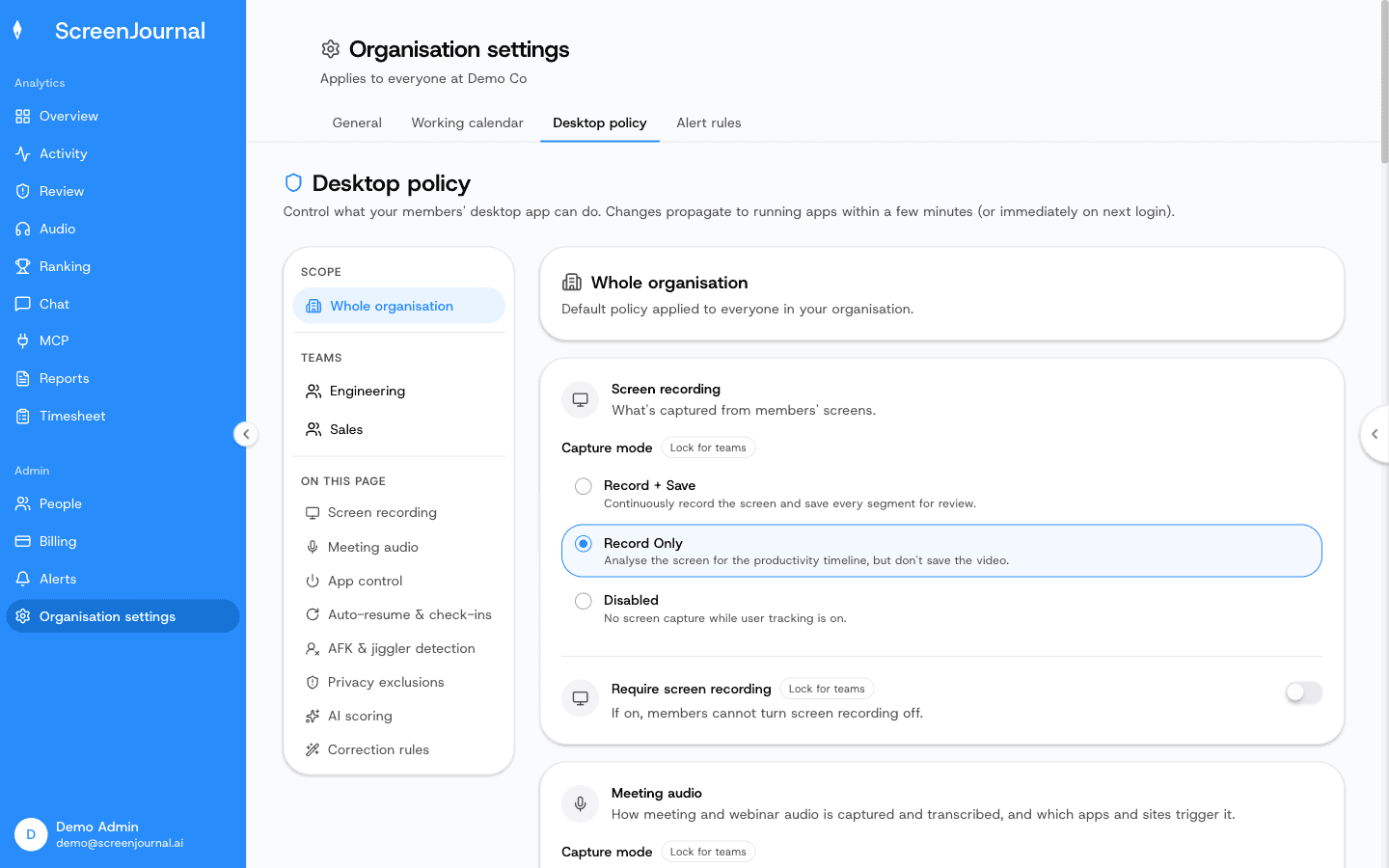
Settings are grouped by feature:
Screen recording
- Capture mode — Record Only (the default: analyse the screen for the timeline but keep no video, so recordings are not stored by default), Record + Save (a manager's opt-in to keep every segment for review where video evidence is needed, which is what makes evidence clips and "Play recording" possible; kept recordings are stored for up to 3 months), or Disabled.
- Require screen recording — members can't switch it off.
- Retention period — days a recording stays on the member's device (maximum 3 months).
- Max local storage — a disk cap; oldest recordings are deleted first.
Meeting audio
- Capture mode — Record + Transcribe + Save, Record + Transcribe (transcript only, audio not kept), or Disabled (default). Turning audio on for the organisation shows a confirmation of your recording-law duties ("Before you enable audio recording"); accepting it records the organisation's acceptance of the Call-Recording Addendum by an owner or admin, with its version and the time. A team manager can turn audio on for their team only after that acceptance exists.
- Require meeting capture — members can't switch it off.
- Meeting apps — the apps whose microphone use triggers recording, picked from a catalogue or added by bundle identifier (Mac) or executable name (Windows). Members can't change the list from the app.
- Webinar apps and sites — recorded while they play sound: the whole webinar, even if the member never speaks, with their microphone added only while the webinar itself is using it. List webinar tools only; chat apps such as Slack or Discord keep their sound output open and would record far more than webinars. Saving the first entry asks you to confirm that you may record webinars this way. Both lists are empty by default, which keeps webinar recording off.
App control
- Require the app to always run — auto-launches at login; the Quit button disappears from the desktop app.
- Require members to stay signed in — the sign-out button disappears.
- Require tracking while the app is open — no start/stop button; members can still take a timed pause.
- Allow open-ended pauses — on by default. Off means every break must have a length and resumes by itself.
- Maximum pause duration — the longest bounded pause (10 minutes by default, never more than an hour). Only applies when open-ended pauses are off.
Auto-resume & check-ins
- Automatically resume tracking after sleep or restart (default on).
- Idle duration before auto-stop (default 3 hours).
- Reminder delay after manually stopping and "Remind me later" snooze duration (both default 1 hour) for the desktop check-in prompt.
Idle & presence
- Time without input before marked idle (default 3 minutes) — one number used for presence, alerts and idle time on the timeline.
- Enable "Are you still there?" prompt and its notice lead time.
- Turn off mouse jiggler detection, and Count detected jiggler time as unproductive (otherwise a suspected jiggler is only flagged for review).
- Count time with the screen locked as idle — a reporting setting that also applies to past days.
- Allow manual timeline entries — lets members and managers explain untracked time (see Activity Timeline).
Privacy exclusions — apps and sites the recorder must never capture. Choose Blocklist (redact the listed apps and sites, record everything else) or Allowlist (record only the listed ones). Ready-made category packs cover Banking, Payroll, HR, Health and Adult content; add your own domains or applications alongside them. Matching browser tabs on macOS needs the Accessibility permission.
AI scoring — replace the built-in productivity rubric with your own description of what counts as productive in your organisation, or start from a template.
Correction rules — standing score overrides by app title and/or URL (Distraction, Neutral, Productive, or flag only), organisation- wide or for one team. They apply to new activity as it arrives; scores already recorded don't change. Use these when the same one-off correction on Activity keeps repeating.
Alert rules
The prompts, suppression rules and desktop notification settings behind alerts are described in the Alerts chapter.
Billing
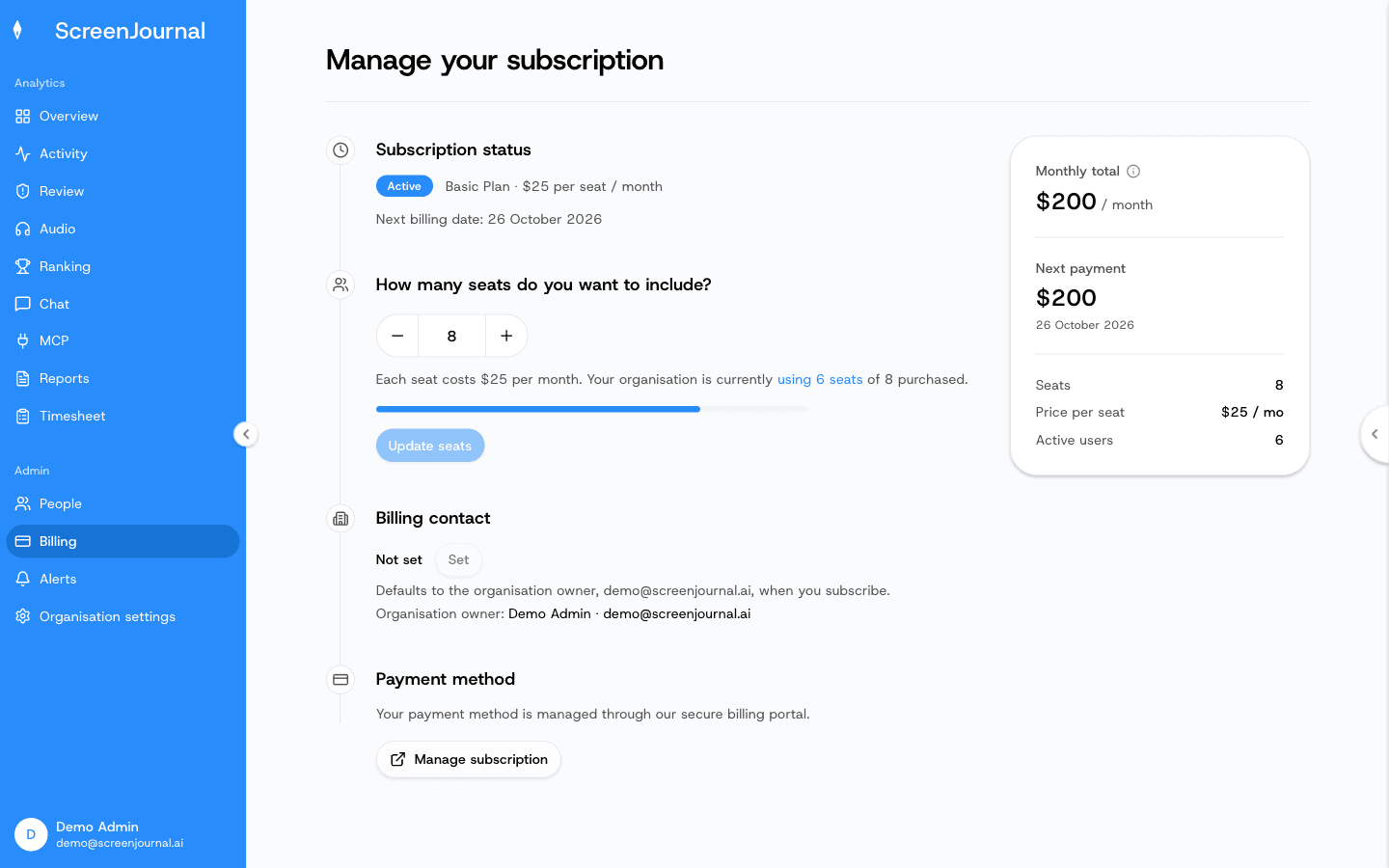
Visible to owners, admins and the Billing role. Subscription status, seat count, the payment portal and trial codes are covered in Getting Started.
Your account
Open Account settings from your avatar. Four tabs:
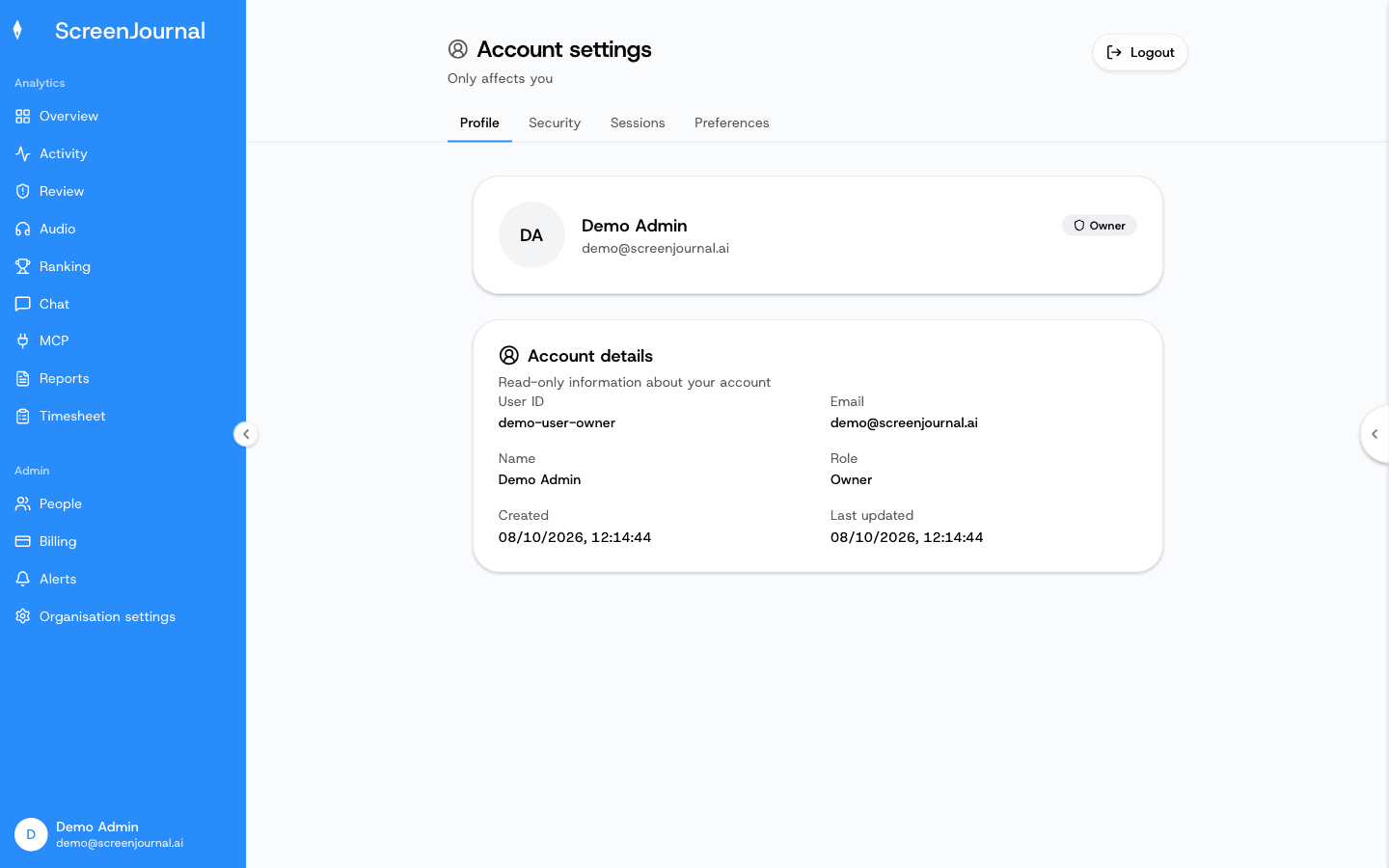
- Profile — your name (editable here), avatar (generated from your name) and role, plus read-only account details. There is no photo upload. Admins can also edit a member's name from the People page.
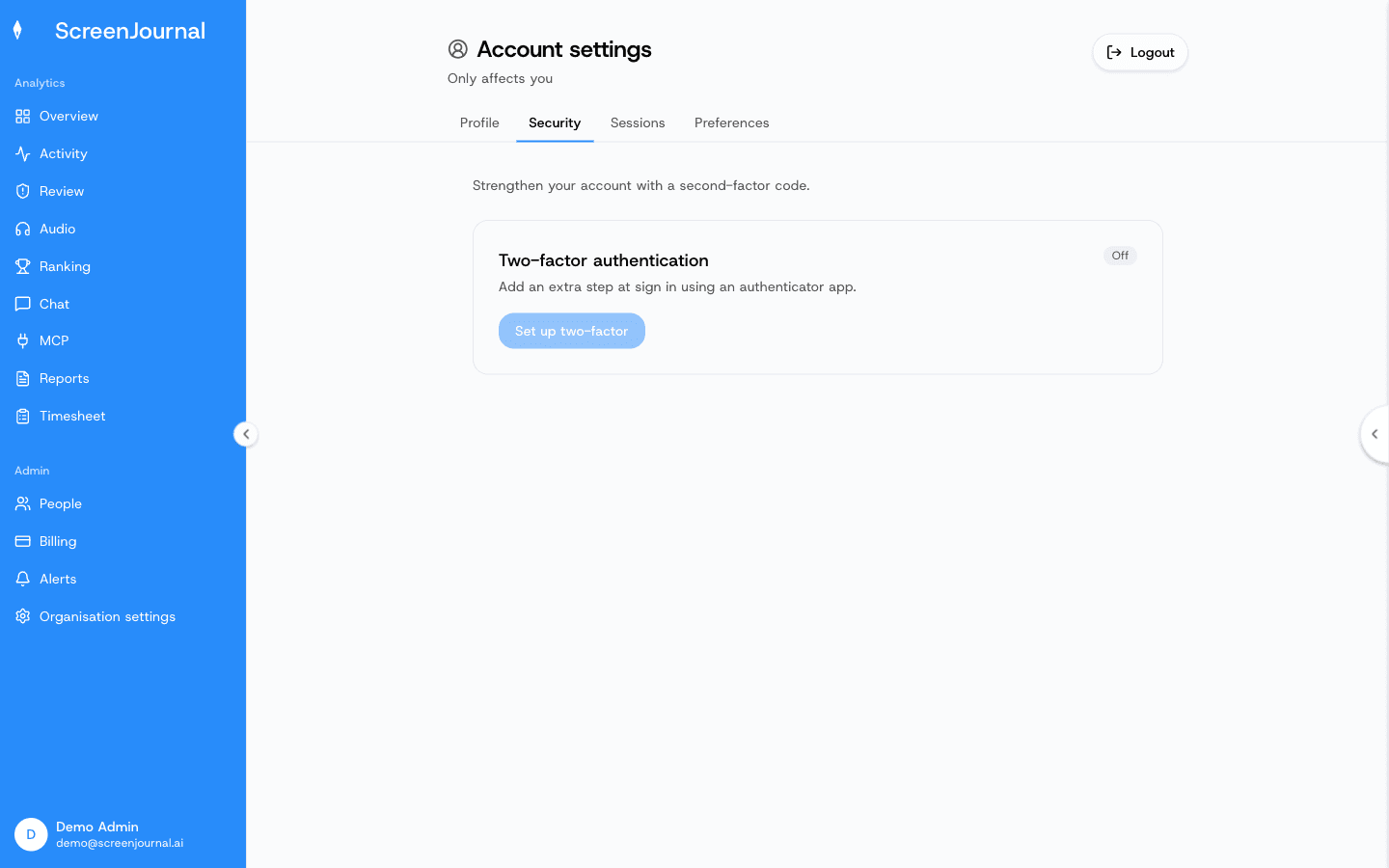
- Security — turn on two-factor authentication with any authenticator app (Authy, 1Password, Google Authenticator). You get a set of one-time backup codes to download; keep them safe. 2FA can be turned off again here.
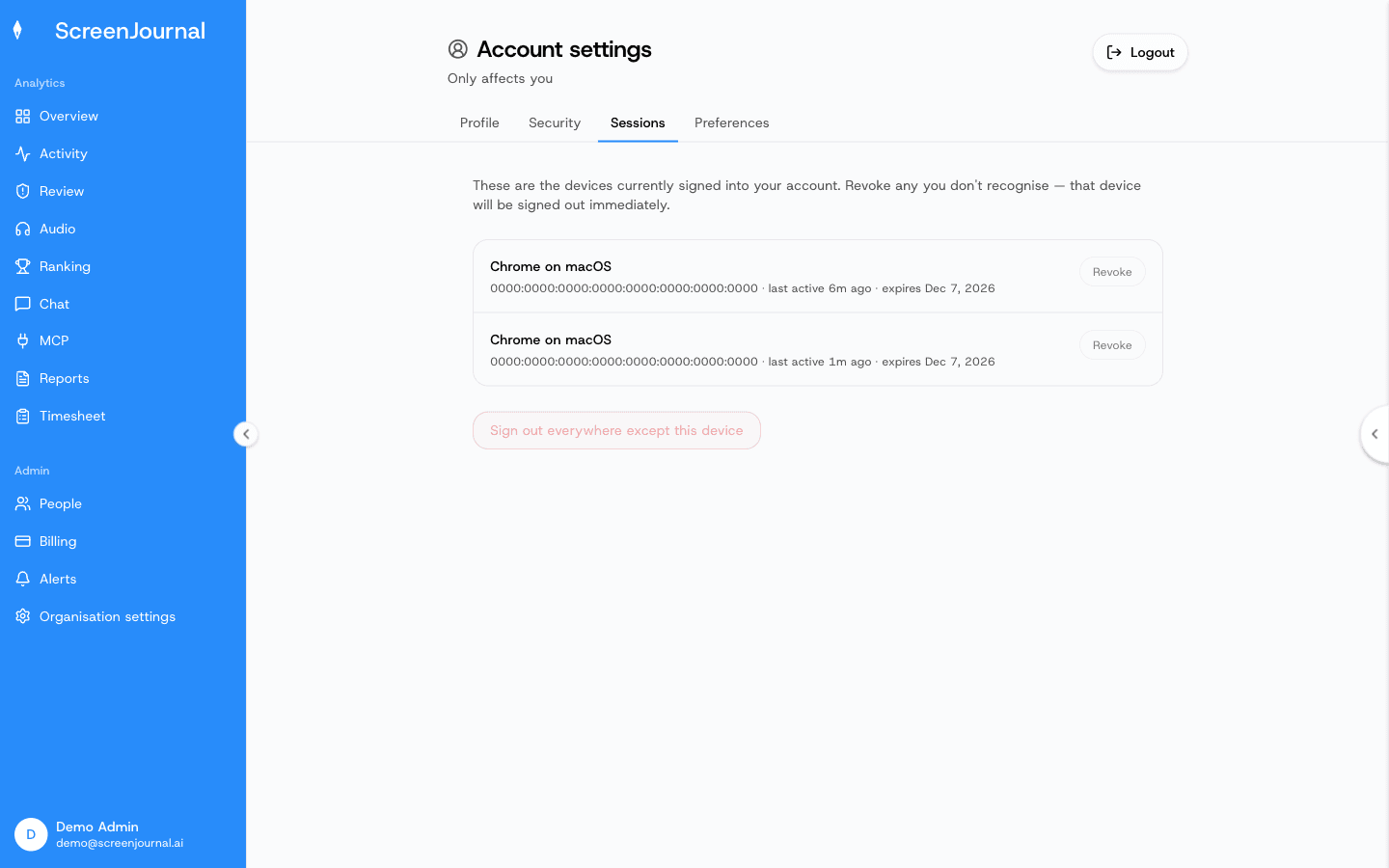
- Sessions — every device signed into your account (web, desktop, AI tools) with last-active times. Revoke any you don't recognise, or Sign out everywhere except this device.
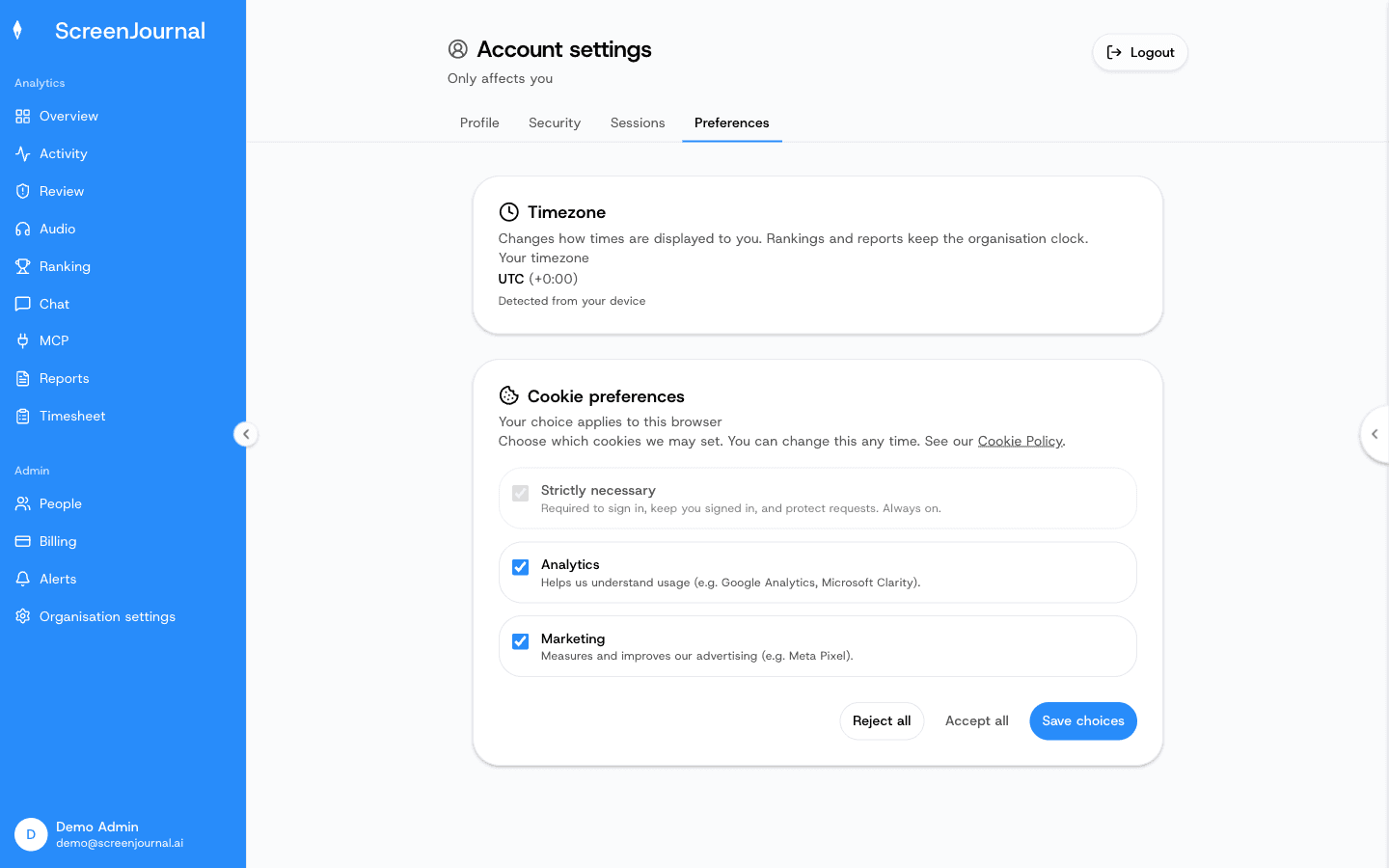
- Preferences — your personal display timezone (how times are shown to you; rankings and reports keep the organisation clock) and your cookie preferences for this browser.
Log out is in the avatar menu, not on the profile page.