The Desktop App
This chapter is for team members. The desktop app is the small recorder that sits in your menu bar / system tray, captures your screen while you work, and turns it into the timeline your organisation sees. You can see exactly what it recorded, pause it, or stop it, subject to your organisation's policy.
Install and sign in
Install the app from the download step of the setup wizard, or from the link in your invitation, then open it. The first screen asks you to sign in:
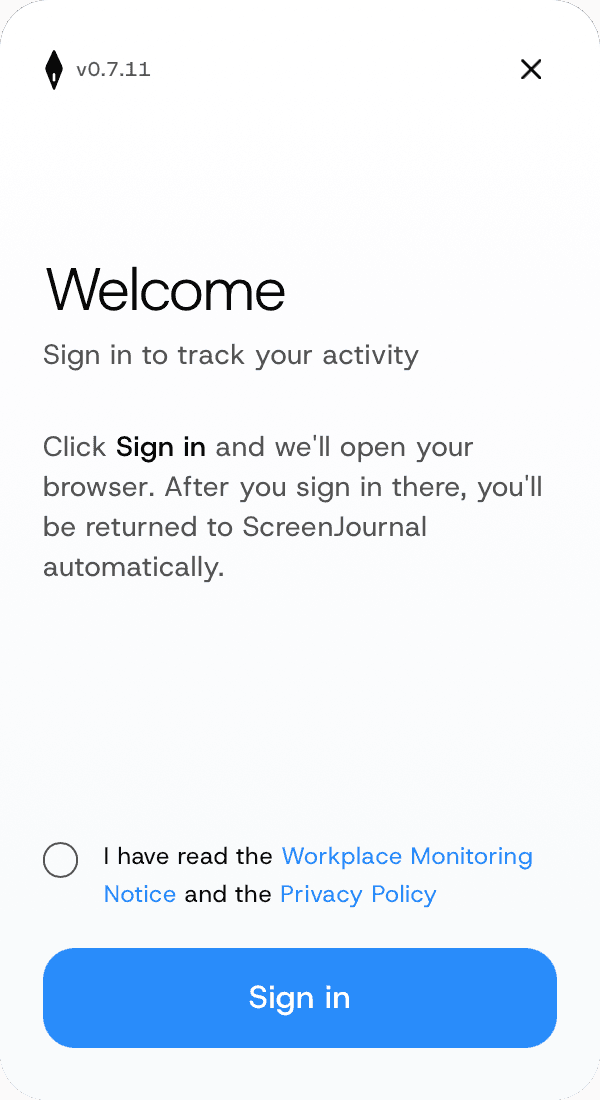
What you see: a welcome screen ("Sign in to track your activity") with a checkbox confirming you have read the Workplace Monitoring Notice and the Privacy Policy (both linked), and a Sign in button.
What to do:
- Tick I have read the Workplace Monitoring Notice and the Privacy Policy.
- Select Sign in. Your default web browser opens; the app shows "Waiting for browser…" with a Cancel link while it waits.
- In the browser, sign in with your work email (the same email-link flow as the dashboard, with a six-digit code you can type instead). You then see the notice page:
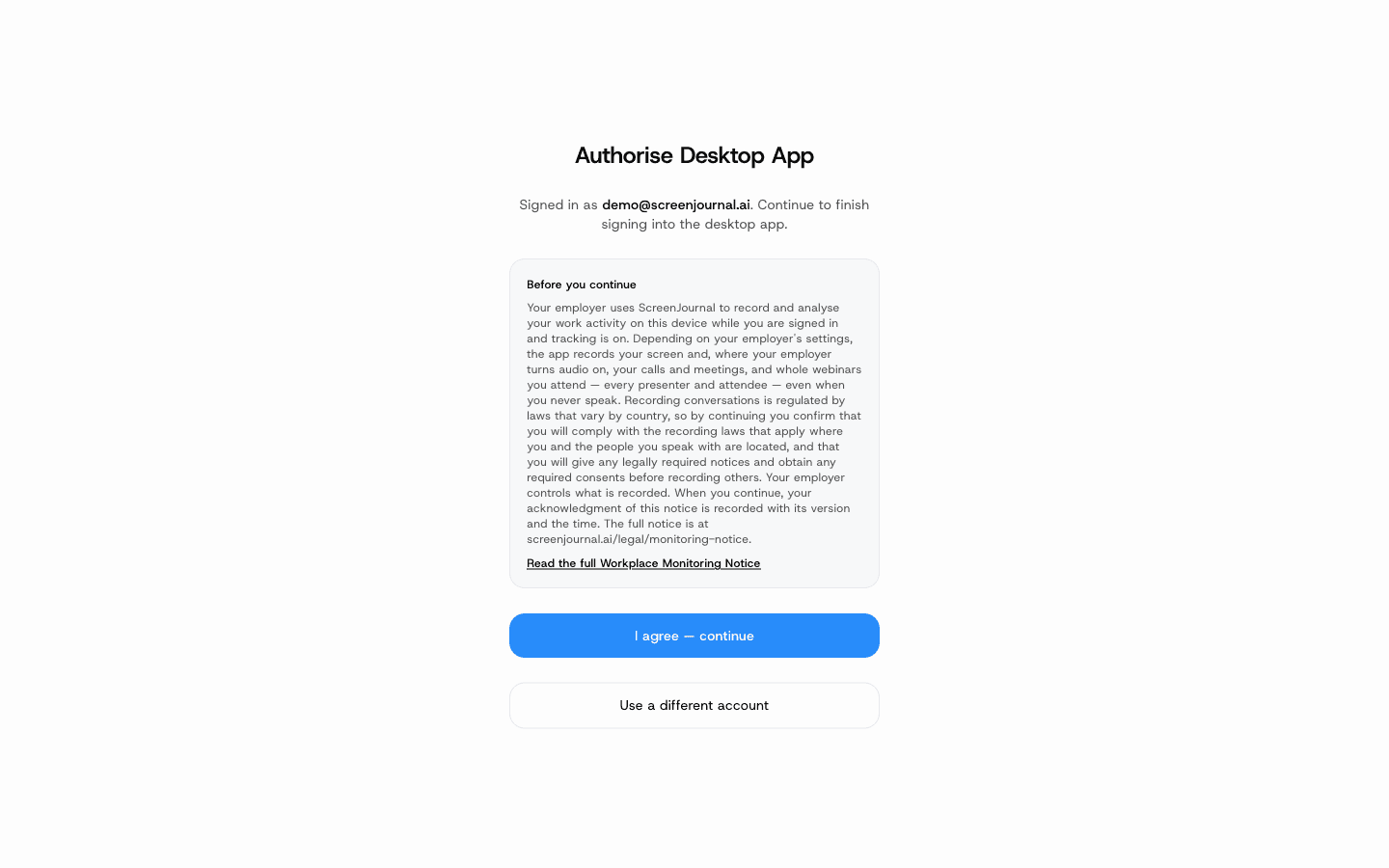
What you see: which account you're signing in with, and the Workplace Monitoring Notice summary ("Before you continue"): depending on your organisation's settings, the app may record your screen and, where audio is on, your calls and meetings and whole webinars you attend, even when you never speak; recording laws vary by country. Read the full Workplace Monitoring Notice opens the published notice.
- Read the notice and select I agree — continue. Your acknowledgment is recorded with the notice's version and the time, each time you sign the desktop app in. The browser tab changes to "Signed in — you can close this tab and return to ScreenJournal" (some browsers close it for you), and the desktop app finishes signing in by itself.
If sign-in is refused you see Access Restricted with the reason: your account has been deactivated, the organisation has reached its seat limit, its trial has expired, or its subscription is cancelled, paused, or missing. Contact your administrator; there is nothing to fix on your machine.
macOS permissions
On a Mac the app asks for three system permissions straight after sign-in, on an Enable Permissions screen:
- Screen Recording — to capture your screen.
- Microphone — to record meeting audio (only used if your organisation turns meeting capture on).
- Accessibility — to read the address of the browser tab you're on, so sensitive sites (banking, payroll, health) can be censored by policy.
Select Enable next to each; the correct System Settings pane opens. The screen re-checks every couple of seconds and Continue unlocks once all three are granted. Windows has no equivalent step.
The main window
The app lives in the menu bar / system tray. Clicking the tray icon opens (or hides) the main window. Closing the window only hides it; the app keeps running.
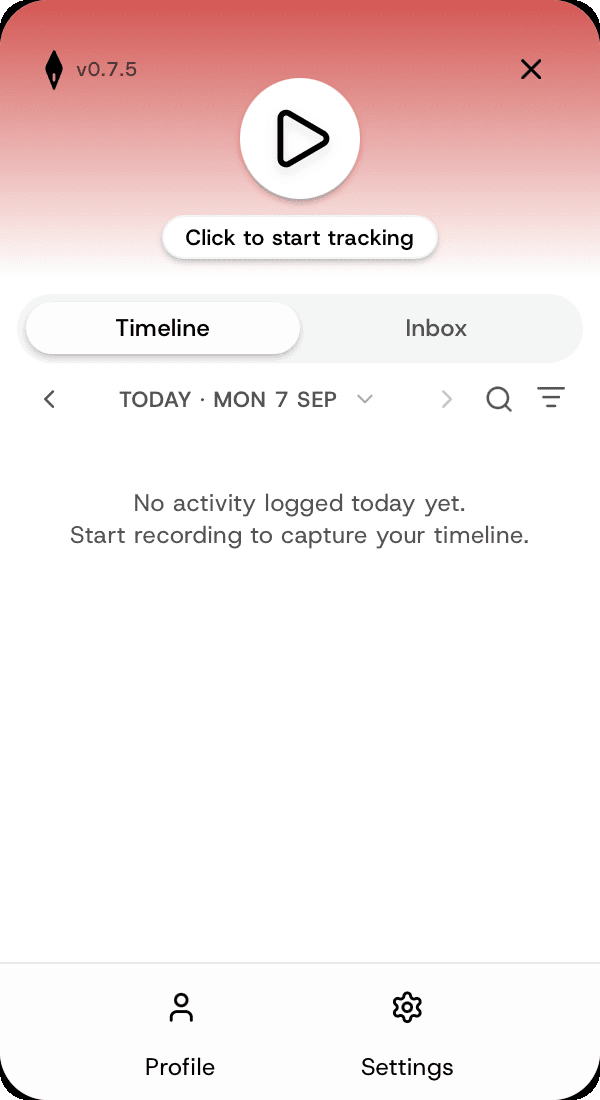
What you see: a big play button ("Click to start tracking"), the Timeline and Inbox tabs, and Profile / Settings at the bottom. A red header means tracking is off and nothing is being recorded.
Select the play button to start. The header turns green and shows Recording:

Your first activity appears in the timeline about 15 minutes after recording starts: the app records short segments and analyses them in the background.
Pausing and stopping
What sits around the main button depends on your organisation's desktop policy. The common layout is:
- Big button = Stop. Ends tracking until you press play again.
- 5 min pill (left) — a one-click short pause.
- Pause pill (right) — opens a picker with 2 / 5 / 10 minutes and one extra row: Pause until manually resume when open-ended pauses are allowed, or Custom (a number of minutes, up to your organisation's maximum) when every break must have a length.
While paused the header turns amber, a countdown chip shows the time left, and recording resumes by itself when it runs out:
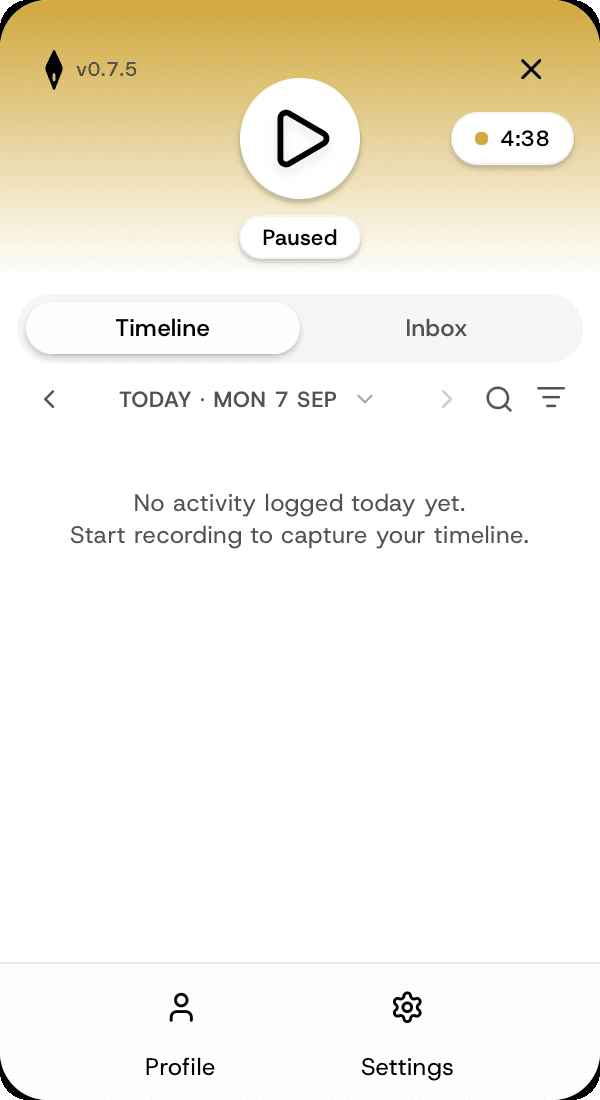
You can always come back early: select the play button to Resume.
Policy variations you may see:
- Open-ended pauses off — the Stop button becomes a pause button; every break needs a length (default maximum 10 minutes, never more than an hour) and tracking resumes automatically.
- Tracking required while the app is open — there is no Stop at all. The strip reads "Recording — your organisation requires tracking to stay on"; you can still take a timed pause.
If a control is missing, that's the policy applied to your team, not a bug. Ask your admin; policies are explained in Settings & Administration.
Prompts you may see
- Check-in prompt — when the app is running but not tracking (for example first thing in the morning, or an hour after you stopped manually), a small window asks "Ready to start tracking your work?" with Start recording, Remind me later (snoozes for an hour by default) and Not working today.
- "Are you still there?" — if your organisation turns the presence notice on, a small notice appears after a couple of idle minutes and closes on its own as soon as you move the mouse, click, scroll or type. It has no buttons; it's a heads-up that you're about to be counted as away.
- Idle auto-stop — if the machine sits idle long enough (three hours by default), tracking stops on its own and the check-in prompt returns when you're back.
- Auto-resume — by default tracking picks itself back up after sleep, an app restart, or a reboot. A session you stopped yourself never restarts on its own.
The Timeline tab
Once segments are analysed, your day builds up in the Timeline tab.
What you see: each entry shows what you were working on, the app you used, the time and duration, and a short AI-written description (See more expands it). A coloured dot gives the productivity score (green productive, blue neutral, yellow low, red distraction). Rows that aren't work are labelled: Tracker Paused, Offline / Asleep, censored windows ("Censored — sensitive-app exclusion fired"), and entries a manager has corrected carry a "Score corrected by a manager" mark. This is the same information your organisation sees; nothing is hidden from you.
What you can do:
- Step between days with the arrows, or open the date label to pick a day from the calendar.
- Search this day (magnifier) and Filter by score. The filter also has Needs reason, which shows untracked time you haven't explained yet.
- Add a reason for untracked time — if your organisation allows manual entries, paused, offline and away stretches carry an Add AFK / Pause / Offline Reason button. Say what you were doing and save it as Productive or Unproductive. The time range is fixed to the gap and the entry can't be deleted later, only its reason edited.
- Add reasons — the pencil button with a count, beside search, appears when two or more stretches still need a reason. Tick the ones that belong together (nothing is ticked for you), type one reason and pick one verdict. Away time that ran across several analysis chunks is already one row, so one reason covers all of it.
- Needs a reason — the Inbox tab lists today's unexplained away, paused and offline time under your alerts, plus locked time where your organisation counts locked time as away, and the red number on the tab counts it all with them. Click one to add a reason, or use Add reasons there for several at once. Time flagged as a jiggler is shown on the Timeline with a Jiggler tag and cannot be given a reason.
- While recording, the newest row reads Recording… and the last few minutes show as still being analysed.
The Inbox tab
The Inbox tab is where alerts addressed to you land — for example a nudge about a long stretch of non-work browsing. Click a row to expand it, type your explanation under "Why? (sent once, no edits)" and Send. Your manager reviews explanations in the dashboard; while they do, the footer shows "Submitted for review", and once reviewed the item leaves the inbox.
Alerts also arrive as a system notification and, depending on policy, as an on-screen bubble in the top-right corner (optionally read aloud). Reminders repeat while an alert is unanswered. With no alerts to answer and nothing needing a reason, the inbox simply says "Nothing to review".
Under the alerts, Needs a reason lists today's unexplained away, paused and offline time, plus locked time where your organisation counts locked time as away. It is there when your organisation allows manual entries. The red number on the tab counts these together with your alerts, but the notifications and reminders are for alerts only. An away stretch shows a short description under it when the analysis wrote one. Click one to add a reason, or Add reasons to explain several at once.
Meeting capture
If your organisation turns Meeting capture on, the app records meeting audio when a recognised meeting app (Zoom, Teams, Meet and so on) opens the microphone. If your admin has also listed webinar apps or sites, the app records the whole webinar while one of them plays sound, even if you never speak; your microphone is added only while the webinar itself is using it. While a meeting or webinar is being recorded the header shows "Recording from" followed by the app name with a stop button. Which apps and sites trigger recording is set by your admin in the organisation's desktop policy; you can't change the lists from the app.
If your computer's clock is more than a couple of minutes off, a banner says so ("Your computer's clock is N minutes fast"). Recorded times are corrected against the server, so nothing is lost, but it is worth fixing the clock.
Settings
Open Settings from the bottom bar. Two tabs:
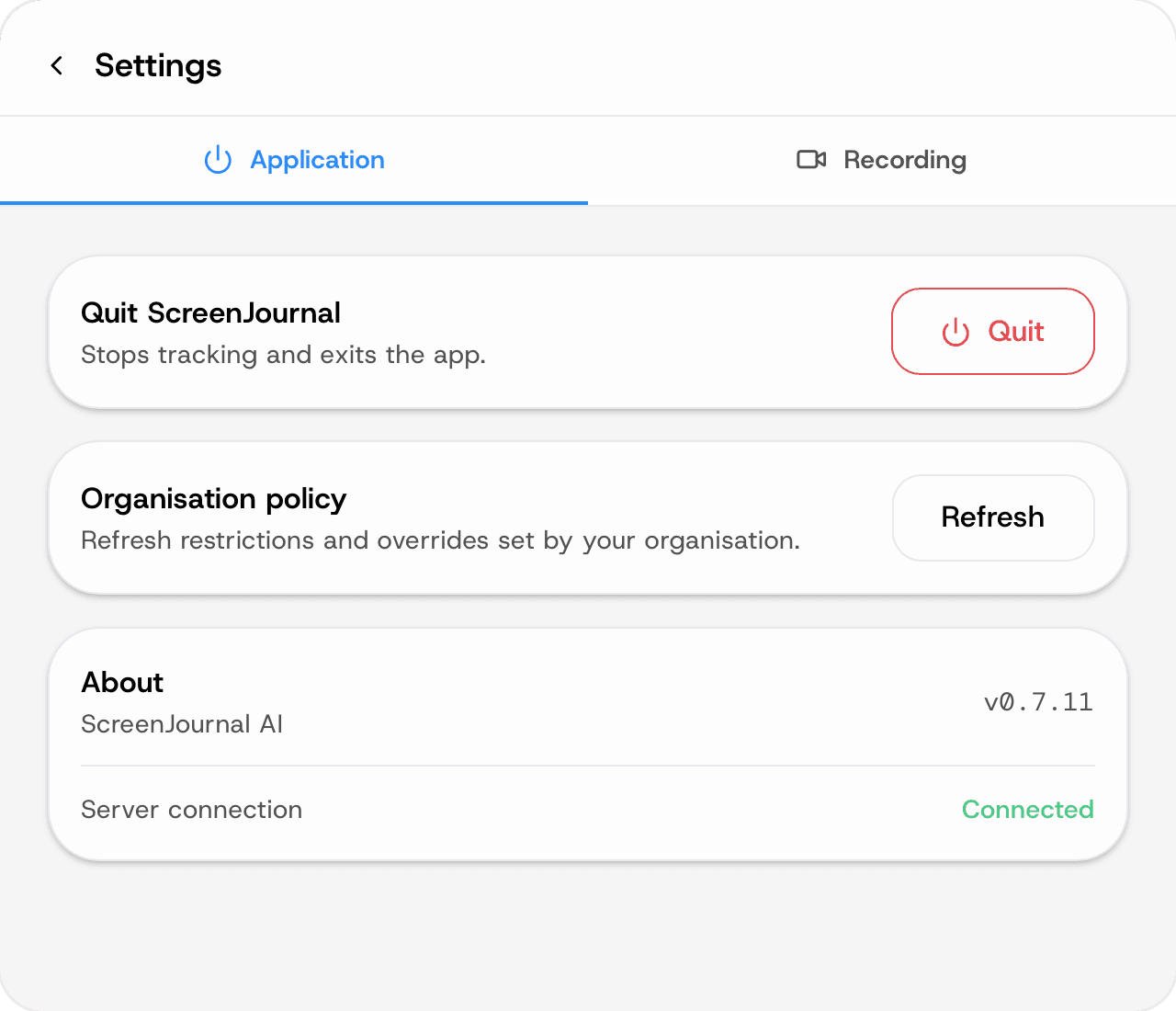
Application:
- Quit ScreenJournal — stops tracking and exits. Hidden when your organisation requires the app to always run.
- Organisation policy → Refresh — pull the latest restrictions and overrides if your admin just changed them (they also arrive on their own within a few minutes).
- About — the app version and the server connection status.
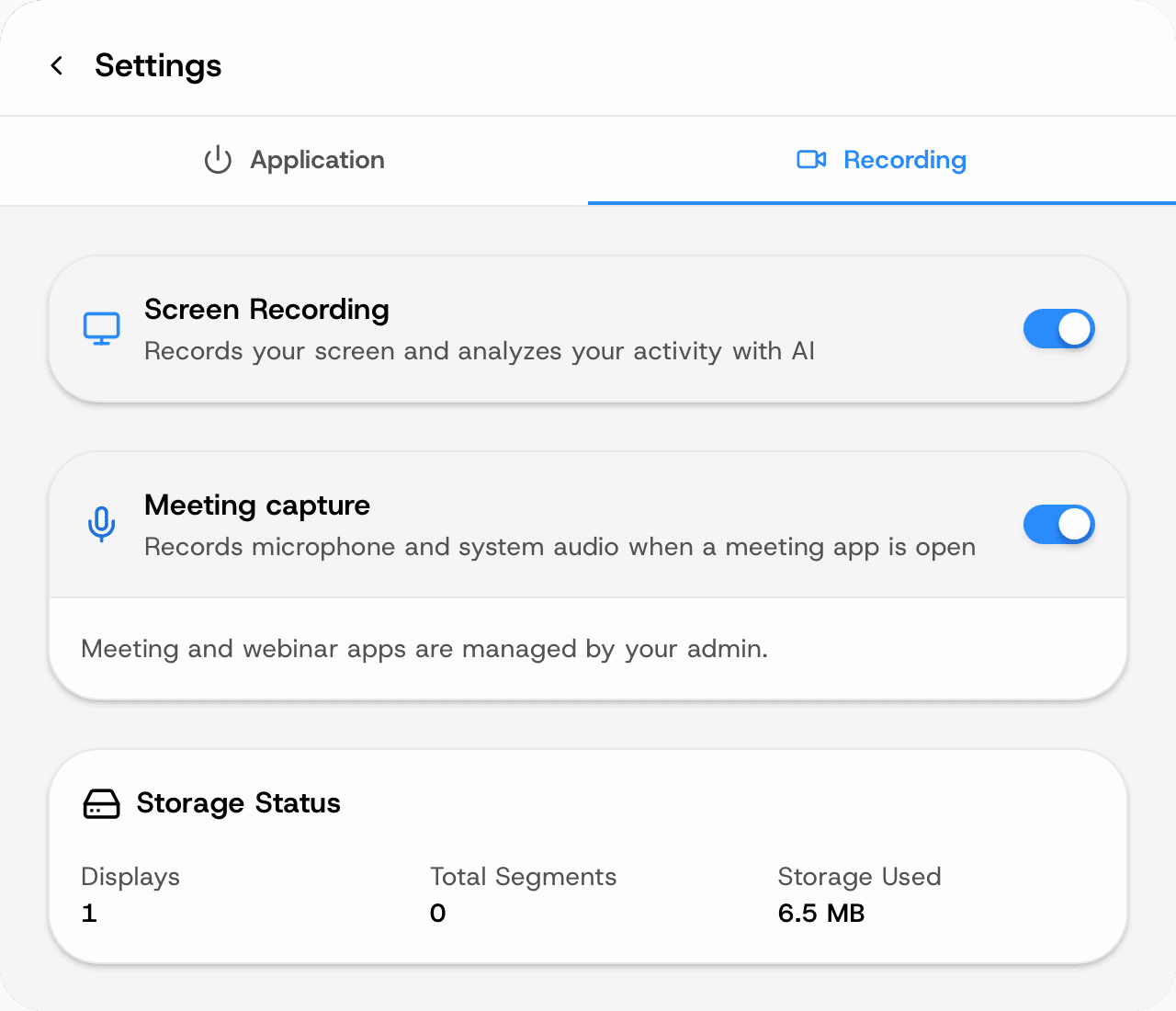
Recording:
- Screen Recording toggle. May be managed by your organisation ("screen recording is required").
- Meeting capture toggle. May be managed by your organisation ("meeting capture is required"). The meeting and webinar apps that trigger recording are managed by your admin and aren't editable here.
- Storage Status — Displays covered, Total Segments stored locally, and Storage Used. Recordings are kept on your device only for the retention period your organisation sets, then deleted.
- Processing Queue Status — the Screen Analysis and Meeting Transcription queues (pending / completed / failed). Work that's pending finishes by itself, including after you've been offline.
Profile and signing out
Profile shows your email, name and account creation date, plus a Log Out button. If your organisation requires members to stay signed in, the button is replaced by "Sign out is managed by your organisation."
Updates
The app updates itself: it checks on launch and periodically, downloads the new version, shows "Updating — please don't close the app", and relaunches. No action is needed.
Everyday questions
- Does it record when I'm not tracking? No. Red header = nothing is captured.
- What about my second monitor? All connected displays are covered while tracking (see Storage Status → Displays).
- Can I see what was recorded? Yes — your Timeline shows every analysed segment, and the web dashboard shows you the same thing.
- I closed the window — did tracking stop? No. Closing just hides it; the app keeps running in the tray. Use Stop (or Quit in Settings) to stop tracking, and click the tray icon to bring the window back.
- Some rows say "Censored" or "Capture skipped". Your organisation's privacy exclusions blocked capture for that window (for example a banking site). Nothing was recorded for it.