People
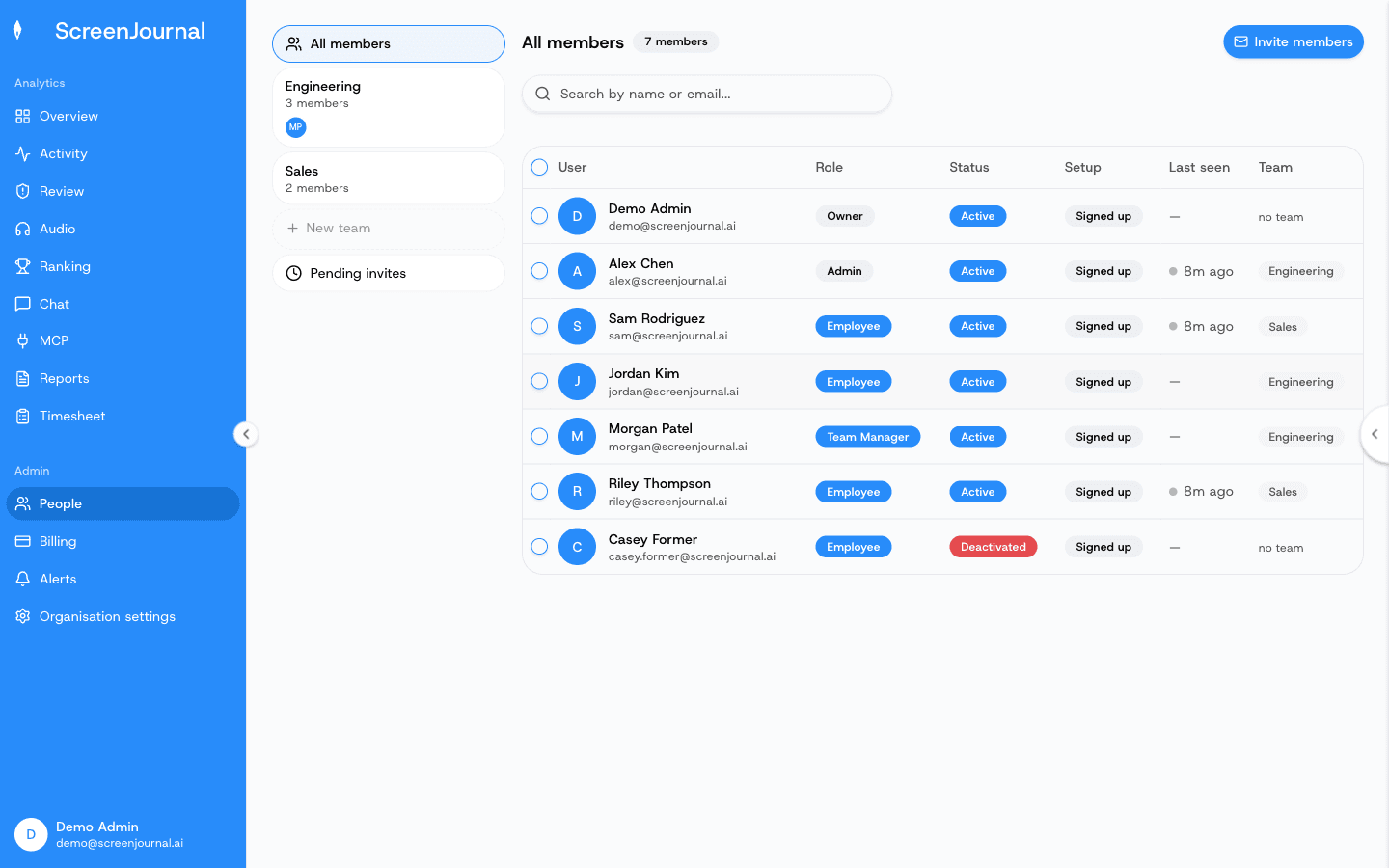
People is the roster: who is in the organisation, what role they hold, which team they're on, who they report to, and whether their desktop app is actually running.
Who can open it
Owners, admins and managers get the full page. A team manager gets their own team's pane. Everyone else manages their own details under Account.
The layout
What you see: a left rail with All members, one entry per team, New team, and Pending invites; a search box; and an Invite members button. The main table lists every member with:
- User — name and email.
- Role — a dropdown when you're allowed to change it.
- Status — Active or Deactivated.
- Setup — Signed up until the installer has been fetched from the setup wizard, Downloaded until the desktop app has checked in from that account, then Installed.
- Last seen — a green Online dot when the app has heartbeated in the last two minutes, amber Idle when it's running but the person is away, otherwise "8m ago" / "3d ago" meaning the app has stopped reporting. A dash means the app has never run for that account.
- Team.
Tick rows for bulk actions: deactivate, activate, remove, assign to a team, or remove from a team.
Inviting people
Invite members opens a dialog: paste one or more emails, optionally choose a team ("No specific team" is fine) and a role, and send. Or Copy invite link for a shareable org-wide link. Invitees receive an email, sign in with it, and are walked through their profile and the desktop download.
Pending invites lists invitations that haven't been accepted and active invite links. From there you can resend an invite (which issues a fresh link and resets its expiry) or revoke a link.
Roles
Change a member's role from the dropdown in the table or from their drawer. Roles are described in Getting Started. Who may change whom:
- Owners and admins can change anyone except that only an owner may grant or revoke the Owner role.
- Managers can change members but not owners or admins, and can't grant Admin.
- Team managers don't change roles; they manage employees and co-managers on their own team.
Teams
- New team in the rail creates one; a team's pane lets you rename it, add a description, or delete it (members keep their organisation account and just lose the team assignment).
- Add member picks from people not yet on a team — everyone belongs to at most one team. Use Invite to bring someone new straight into a team.
- A team manager is simply a member of the team holding the Team Manager role.
The member drawer
Click a row to open the member's drawer:
- Role and team assignment, and a pencil beside the name to edit it.
- Reporting managers — choose who this person reports to. A reporting manager sees their reportees on Overview, Activity, Audio, Ranking, Reports and Review, whatever their own role. Whether that reach follows the chain downward is set in Organisation settings → General → Manager visibility.
- Deactivate User / Activate User and Remove.
The row's ⋯ menu also offers Send download reminder for someone who has signed up but not yet installed the app.
Deactivate or remove
- Deactivate when someone leaves. They lose access to the desktop app and any connected AI tools, their seat is freed, and their history stays visible in every report. You can reactivate them later.
- Remove deletes them from the organisation; their history is no longer visible and the action cannot be undone. To keep the history, deactivate instead.