Alerts
Alerts are ScreenJournal's nudge loop: a rule fires on a member's activity, the member sees it on their desktop and can explain, and a manager reviews the explanation in the dashboard. Nothing is configured by default; an organisation that never writes a prompt never sends an alert.
How an alert travels
- An admin writes a prompt (a plain-language rule) under Organisation settings → Alert rules. The AI checks it against slices of each member's screen activity.
- When it matches, the member gets a system notification and, by policy, an on-screen bubble (optionally read aloud), and the alert lands in the Inbox tab of their desktop app. Reminders repeat while it's unanswered.
- The member replies with a one-time explanation from the desktop inbox.
- The explanation appears in the dashboard Alerts → Inbox for review.
- Every alert, sent or suppressed, is kept in Alerts → Log.
Who sees the Alerts page
Owners and admins see the whole organisation. A team manager sees their own team's alerts and explanations. Sending a direct alert is owner/admin only.
Inbox
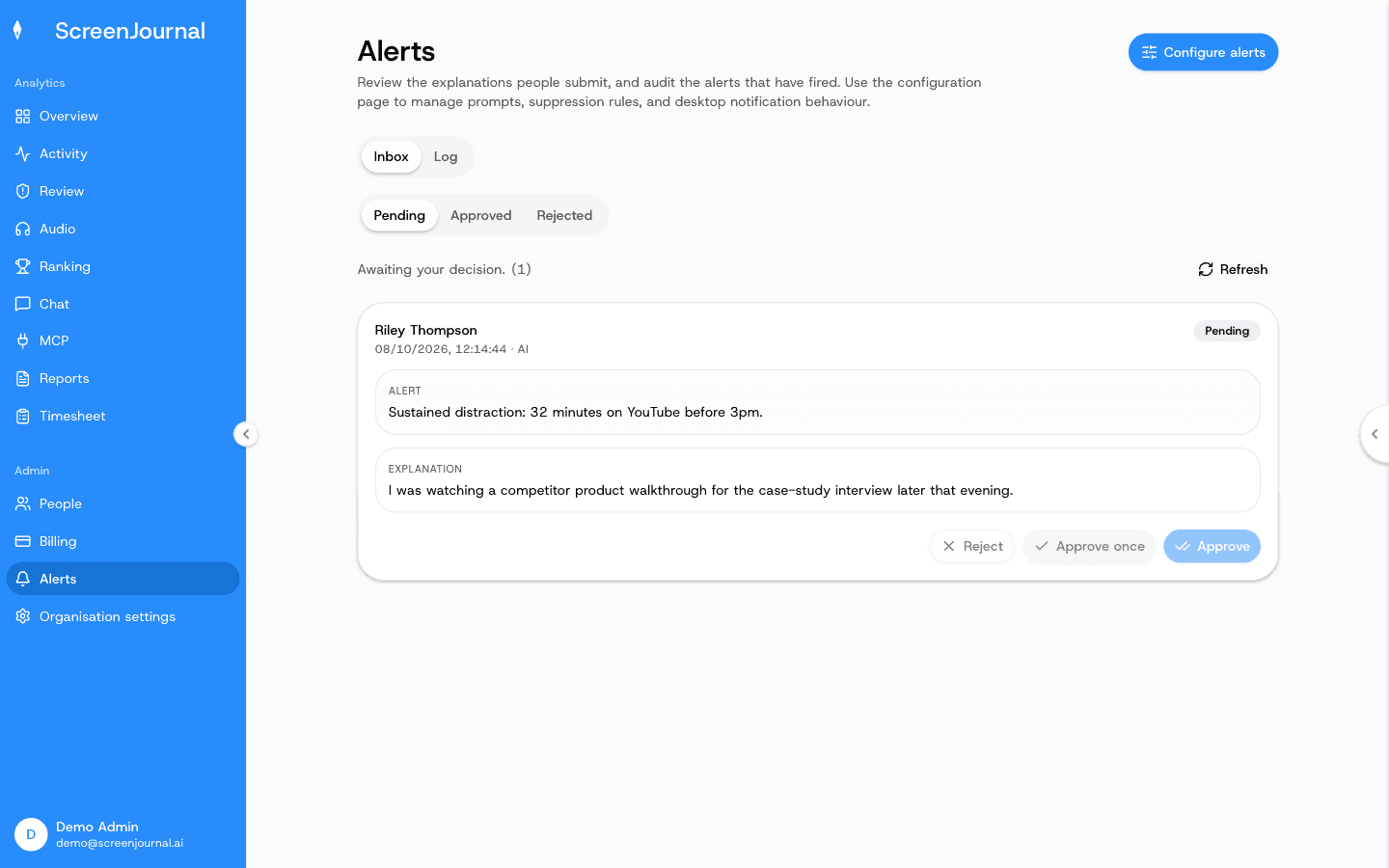
What you see: three sub-tabs — Pending, Approved, Rejected. Each card names the member, when the alert fired and its source (AI, Admin direct, or Suspicious match), then the Alert text and the member's Explanation.
What you can do:
- Approve — accept the explanation and let future AI evaluations use it as context for this member.
- Approve once — accept this instance only; nothing is remembered.
- Reject.
Neither approval suppresses future alerts; suppression comes from the rules below.
Log
What you see: metrics tiles — Dispatched, Direct sends, Suppressed, Clips uploaded, Clips failed — then every alert evaluation, filterable by member and source (Admin (API), AI-generated, Suspicious match). Rows show the score of the segment that triggered them and a Play evidence clip button when a clip was retained. Opening a row shows the detail: the alert or, for a suppressed evaluation, the suppression reason; the prompt that produced it; and how it was delivered.
Send direct alert (owners and admins) writes an alert to one or more members by hand, optionally tied to a specific activity, and delivers it the same way as an AI alert.
Alert rules
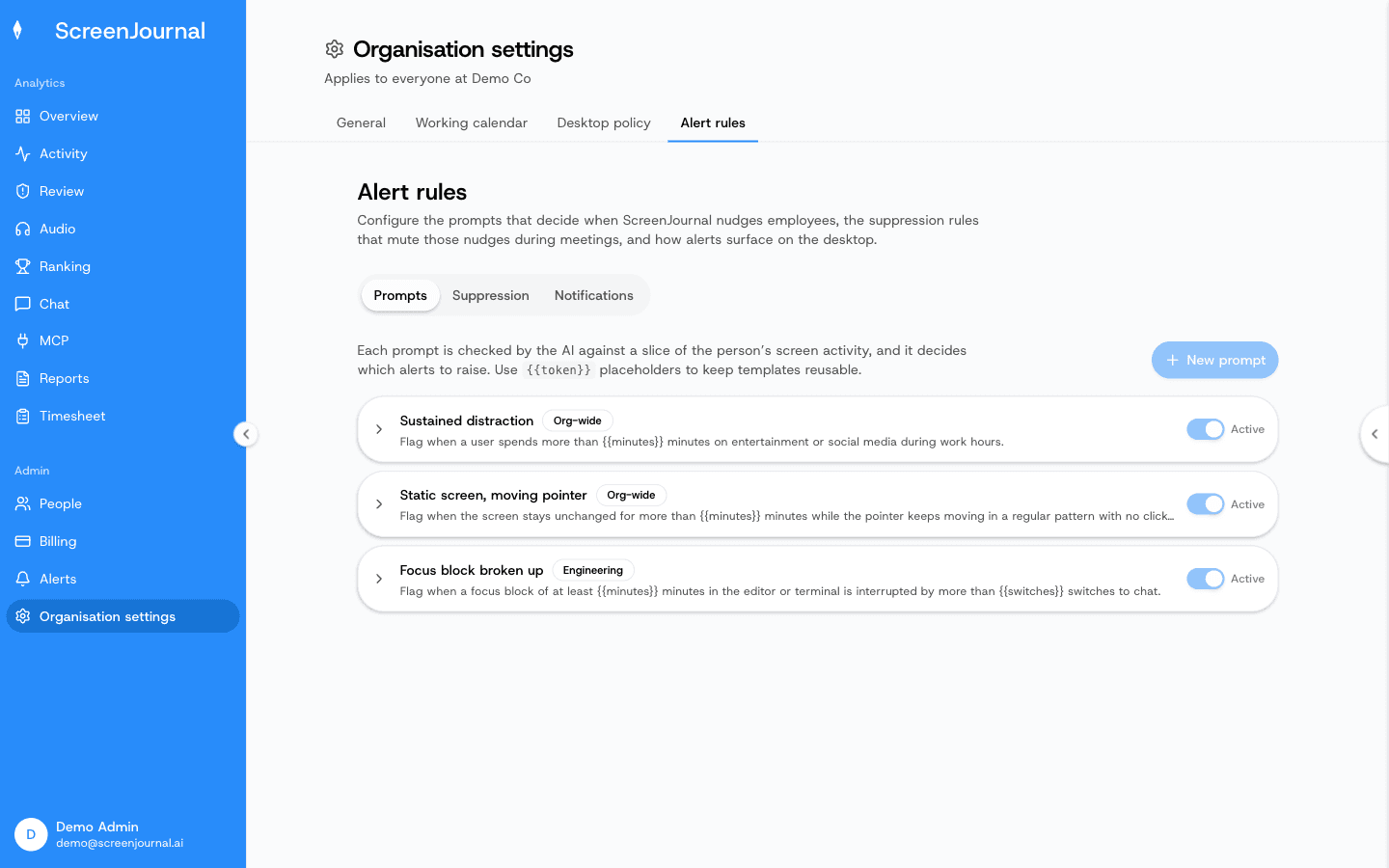
Configure alerts on the Alerts page (or Organisation settings → Alert rules) opens three tabs. Owners and admins manage organisation-wide rows; a team manager sees the organisation's rows read-only and manages rows for their own team.
Prompts — the rules themselves, in plain language, for example "Alert if
an agent opens YouTube during their call window" or "Alert if a developer
spends more than {{deep_work_minutes}} minutes on social media during
deep-work hours". {{tokens}} keep a template reusable. Each prompt has a
scope (Org-wide (all teams) or one team) and an Active toggle;
deleting a prompt stops new alerts but keeps the ones already logged.
Suppression — conditions checked before the AI runs, so members aren't nudged mid-meeting. Four kinds, each org-wide or per team:
- Calendar event — any event, busy-marked events only, or events whose title matches keywords.
- On a call (camera or mic) — Off, Low (camera and mic both active), or High (any camera or mic activity, recommended).
- Desktop "In a meeting" toggle — the member's own switch.
- In-person conversation — phrases in the meeting transcript that suggest someone walked up ("hey", "sorry", "mind if I").
Notifications (owners and admins) — how alerts surface on members' desktops: the In-app bubble and how long it stays, the Text-to-speech readout (voice and rate), and Nag reminders for unanswered alerts (bubble and/or voice).
On the member's desktop
The member side is covered in The Desktop App: the notification, the bubble, the inbox reply, and the "Submitted for review" footer.