A Flag Is Not a Verdict: How ScreenJournal Screens for Fake Activity
Mouse jigglers and staged screens are a real problem, and so is a tool that convicts people automatically. Here is how ScreenJournal flags suspected fake activity, shows the evidence, and leaves the decision to a person.
A Flag Is Not a Verdict: How ScreenJournal Screens for Fake Activity
Updated on 6 October 2026
A mouse jiggler costs less than lunch. It plugs into a USB port, nudges the pointer every few seconds, and turns an empty chair into a "98% active" afternoon on any tracker that measures motion.
There are two bad responses to that. The first is to ignore it, and let the people doing real work be outranked by a dongle. The second is to build a detector and let it convict: dock the hours, flag the employee, send the email, all without a human looking at what actually happened.
ScreenJournal is an AI work visibility tool that reads on-screen work as it happens, turns it into a detailed timeline of what each person actually did, and then, by default, deletes the raw screen data. Because it reads the work rather than counting input, faked motion earns nothing to begin with. But "earns nothing" is not the same as "worth a second look", so the product also screens for suspected fake activity and puts what it finds in front of a person, with the evidence attached.
This post explains what gets flagged, where the flags go, and why none of them is a verdict.
Why Faking Works on Most Trackers
Most time trackers estimate effort from input: keyboard and mouse activity over tracked time, rolled into an activity percentage. A jiggler produces input. So does a key held down with a paperweight. So does a video playing behind a spreadsheet nobody is touching, as long as something keeps the pointer alive.
We have written about why mouse jigglers beat motion-based trackers and about what a good activity percentage even means. The short version: if the measurement is motion, motion is what you get.
ScreenJournal's away time already ignores that kind of noise. A person is counted as present on purposeful pointer movement, clicks, scrolling and key presses, and the productivity score rates what was on screen, not how busy the input looked.
What Gets Screened
There are two layers, and they answer different questions.
The jiggler check, per segment. Each recorded segment is checked for a pointer trail that looks artificial. When one does, the segment carries a mouse icon and the words "Possible mouse jiggler detected" on the timeline. This is on by default.
Fake-productivity screening, per day. Once a day has ended, the day's record is screened for signs of faked productivity: the kind of thing a jiggler is one example of, alongside patterns like input that never changes or entertainment running behind a window that is supposed to be work. Each finding is a signal with three parts:
- a title
- a description in plain English
- the time ranges it covers
We are deliberately not publishing the rules. A detailed list of what the screening looks for is a manual for getting round it.
Where the Flags Go: The Review Page
Flags do not arrive as an alert, a penalty or an email. They go to Review, a triage page for anyone who can already see other members' timelines: owners, admins, managers, viewers, team managers with a team, and anyone with people reporting to them.
Review lists one member at a time, over a day, a week or a month, and narrows by case. Each case chip shows how many segments fall into it:
| Case | What it lists |
|---|---|
| Fake Productivity | Segments overlapping a fake-productivity signal |
| Jiggler | Segments where the pointer trail looked like a mouse jiggler |
| Unproductive | Segments scored 1 or 2 |
| Neutral | Segments scored 3 |
| Locked | Stretches the machine was locked or stopped for idleness |
| Untracked | Time a reason can still be added to |
| Manual | Entries added by hand |
| Corrected | Segments an admin re-scored |
Some cases appear only when the matching setting is on: Jiggler is hidden when detection is switched off, and Untracked and Manual need manual timeline entries enabled.
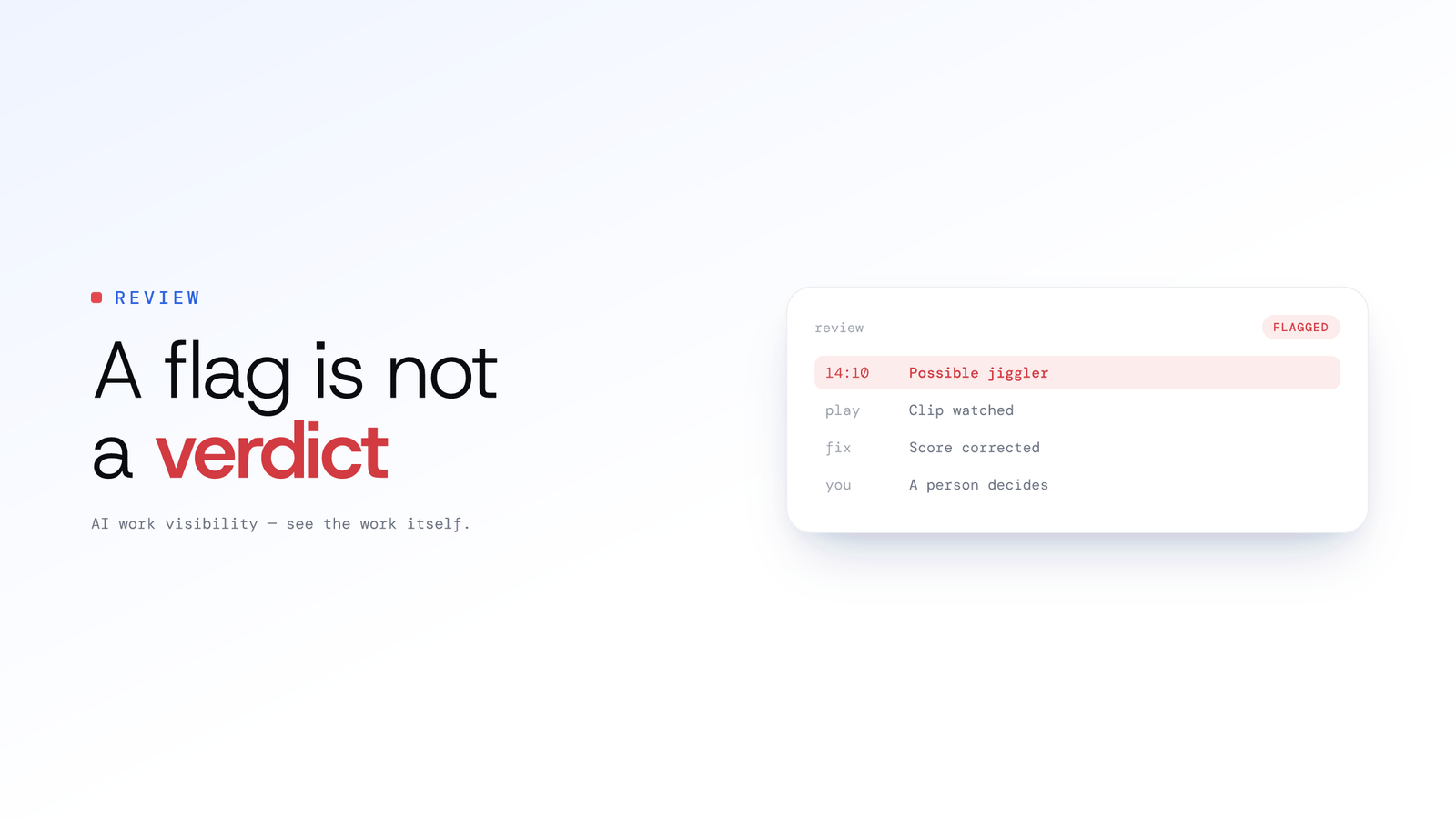
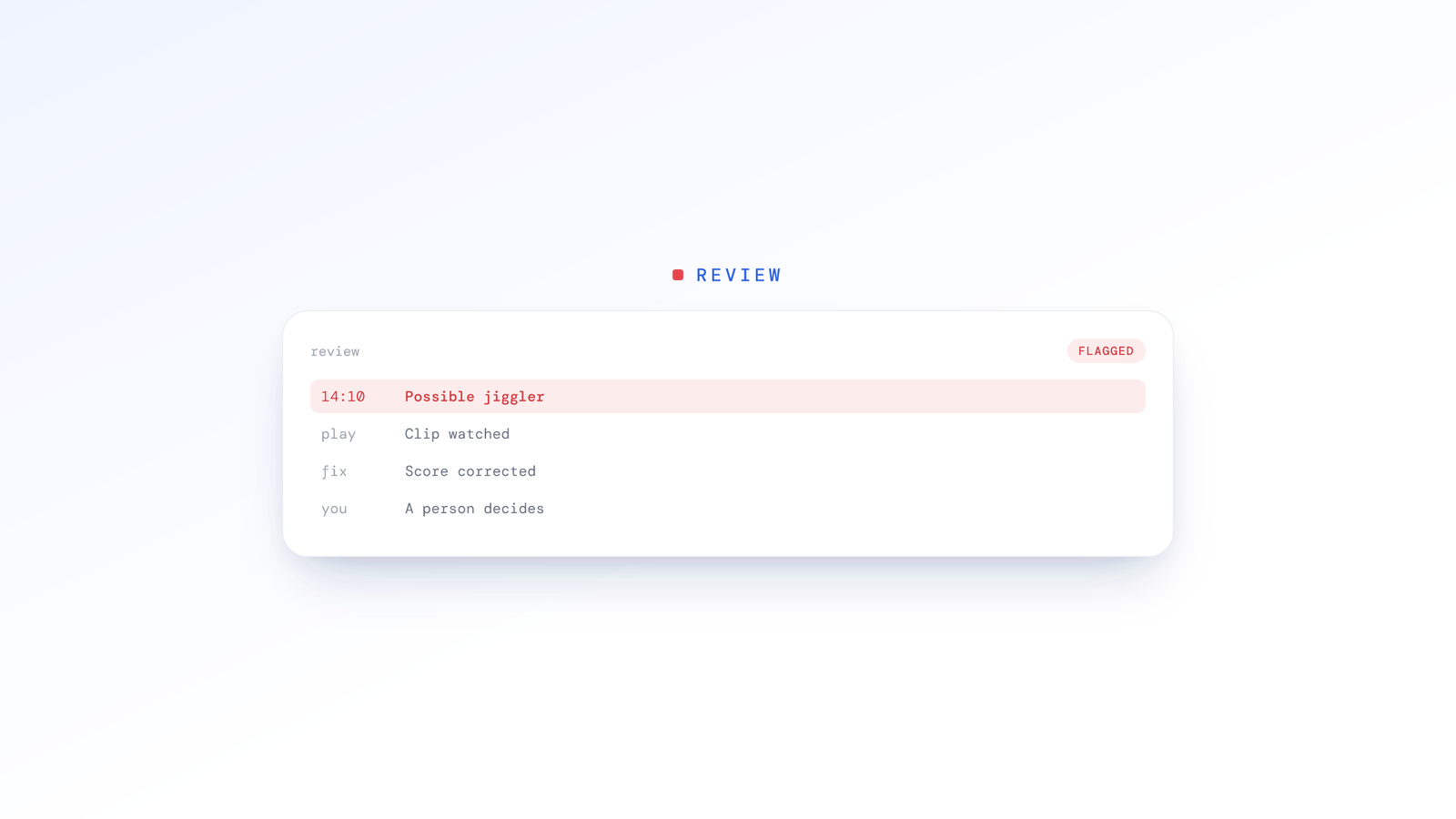
Under a flagged segment, the signals that cover it are printed in red: the signal, its description and the overlapping time ranges. The reviewer reads the claim next to the thing it is a claim about.
Review opens in a Video view: the selected segment sits on a stage, the list runs beside it, and the member's day lies underneath as a scrubber. It plays wherever the organisation keeps recordings (Evidence Mode). Where no recording is kept, the stage says so and the written record is what there is. A Text view drops the player for a quick read of the list.
Five Reasons a Flag Is Not a Verdict
1. Flagging is the default. Penalising is a choice.
Out of the box, a suspected jiggler is flagged for review and nothing else. Count detected jiggler time as unproductive is a separate switch in the desktop policy, and an organisation has to turn it on deliberately.
2. No flag does not mean "cleared"
A segment with no red lines under it only means no signal was attached to it, or that the screening has not run for that day yet. Review shows which days are still being screened, and it never stamps anything as clean. A tool that says "verified genuine" is making a promise it cannot keep.
3. The employee sees the jiggler flag too
Time flagged as a jiggler carries a Jiggler tag on the employee's own timeline, in the desktop app and on the web. It is the same record the manager sees. Nobody finds out in a disciplinary meeting that a flag has existed for three weeks.
4. A person decides, with the evidence open
Every card on Review carries the same actions as the Activity timeline:
- Play recording, where the organisation keeps video
- Correct score, for owners and admins, when the AI or the flag got it wrong
- Redact, where the organisation has granted it
- Add a reason, on untracked time
When a whole list turns out to be a false alarm, owners and admins can use Correct all as productive on the narrowed list. It asks for confirmation and names the count and the member first, because there is no bulk undo.
5. Flagged time cannot be explained away by the person it concerns
ScreenJournal lets people add a reason to away time. That stops at a jiggler flag: nobody can add a reason over their own jiggler-flagged time. A manager reviewing it can, and a stretch that mixes flagged minutes with real work still takes a reason, written around the flagged minutes and never over them.
What a Review Session Looks Like
Monday, 9:15. A team manager opens Review, picks one of her team, sets the period to Weekly and presses the Fake Productivity chip. It reads 3.
Segment one is Thursday, 14:10 to 14:55. The red line names the signal and the forty-five minutes it covers. She plays the clip. The screen shows a design file, zoomed out, untouched the whole time. She leaves the score alone and makes a note to talk.
Segment two is Friday morning. She plays it and sees a long document being read, slowly, with the occasional scroll. The flag is wrong. She asks an admin to correct the score, and the segment joins the Corrected case.
Segment three has no recording, because that team's policy keeps none. She reads the timeline entry, reads the signal, and decides it is not enough to act on.
Three flags, three different outcomes, and one conversation. That is the system working as intended.
The Honest Limits
No screening catches everything, and no screening is free of false alarms. Hardware jigglers present to a computer as an ordinary mouse. People genuinely do sit still and read. Any vendor claiming a perfect detector is selling the first bad response from the top of this post.
That is why ScreenJournal does not rely on detection. The record is of the work: hours of faked motion show up as a timeline with no work in it, visible to the employee and the manager alike. Screening exists to tell a reviewer where to look first, not to replace the look.
It is also why the output is a list for a person and not a deduction from a timesheet. If a flag is going to affect someone's pay or standing, a human should have read it, watched what there is to watch, and asked.
Setting It Up
Under Organisation settings → Desktop policy → AFK & jiggler detection:
- Turn off mouse jiggler detection, if you do not want the check at all
- Count detected jiggler time as unproductive, if you want a flag to change the numbers; otherwise a suspected jiggler is only flagged for review
For playback on Review, the screen recording mode needs to be Record + Save, for the organisation or for the teams where video evidence is warranted. Kept recordings are stored for up to 3 months.
A setting marked "Not included in your plan" is fixed by your subscription rather than by the policy.
Then tell the team. Screening that people know about is a fair rule. Screening they discover later is a trap. The Review guide covers the page in detail.
Frequently asked questions
Does ScreenJournal detect mouse jigglers?
Yes. Detection is on by default: when a segment's pointer trail looks artificial, the segment is flagged for review with a 'Possible mouse jiggler detected' mark. Flagged time only counts as unproductive if the organisation turns that on. ScreenJournal does not rely on the detector, though: it measures the work that was produced, not mouse and keyboard motion, so simulated activity earns nothing to begin with.
What happens when time is flagged as fake activity?
It is listed on the Review page for the people who can already see that member's timeline, with the signal, a description and the time ranges it covers shown in red under the segment. A reviewer can play the recording where the organisation keeps one, correct the score, or leave it as it is. Nothing is deducted automatically unless the organisation has chosen to count detected jiggler time as unproductive.
Can an employee see that their time was flagged as a jiggler?
Yes. Time flagged as a jiggler carries a Jiggler tag on the employee's own timeline, in the desktop app and the web dashboard, the same record their manager sees. They cannot add a reason over their own flagged time; a manager reviewing it can.
Does a segment with no flag mean the time was genuine?
No. A segment with no signal under it only means no signal was attached to it, or that the screening has not run for that day yet. The Review page shows which days are still being screened and never labels time as cleared.
Can jiggler detection be turned off?
Yes. An owner or admin can turn off mouse jiggler detection in the desktop policy. With it off, the Jiggler case is hidden on the Review page.
Measure the Work, Then Look Where It Points
The durable answer to faked activity is not a better detector. It is a record of what was actually produced, which a dongle cannot write. Screening sits on top of that as a pointer for a reviewer, and the reviewer stays in charge.
If you are weighing this against tools that score input, start with whether mouse jigglers are detectable and how productivity scores compare with real output.
Stop guessing. Start knowing.
Let AI turn screen data into clear insights. Start your 2 months free trial
Related Posts
Away Is Not Absent: How Employees Explain Untracked Time
A whiteboard session, a phone call and a long lunch all look the same to a tracker: no input. Here is how ScreenJournal lets the person who was there say what the gap was, and what a manager sees when they do.
Beyond Screen Recording: Why Voice Analysis is the Missing Piece in Work Visibility
Most work visibility tools only read the screen. For call centres, sales teams, and support desks, the real work happens through voice. Learn how AI voice analysis closes the visibility gap, and how screen and call audio are handled differently.
Getting Started with ScreenJournal
Set up ScreenJournal in four steps, from creating your organisation to your team's first week of timelines, for work visibility that reads the work and, by default, deletes the raw screen data.