Away Is Not Absent: How Employees Explain Untracked Time
A whiteboard session, a phone call and a long lunch all look the same to a tracker: no input. Here is how ScreenJournal lets the person who was there say what the gap was, and what a manager sees when they do.
Away Is Not Absent: How Employees Explain Untracked Time
Updated on 6 October 2026
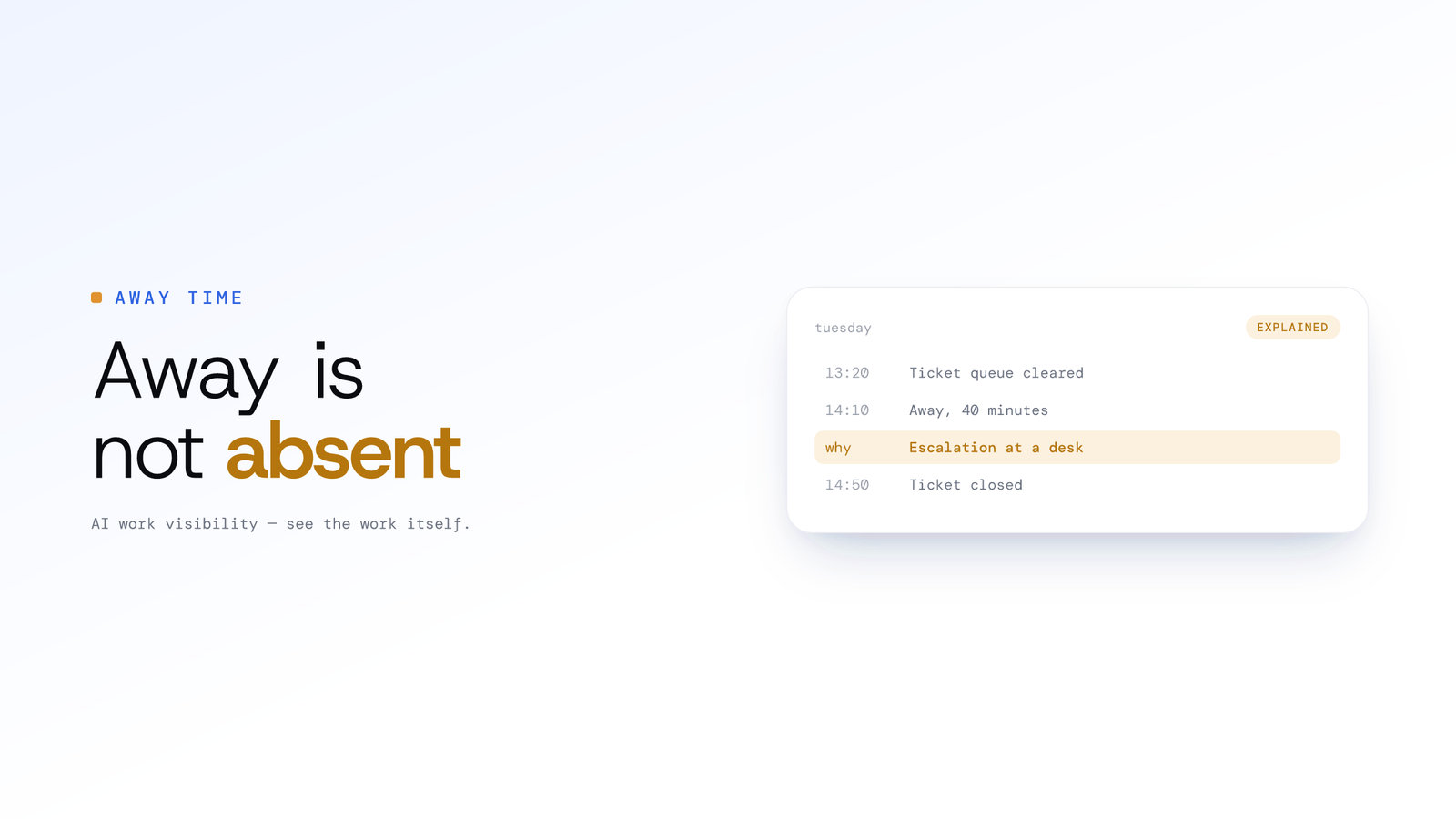
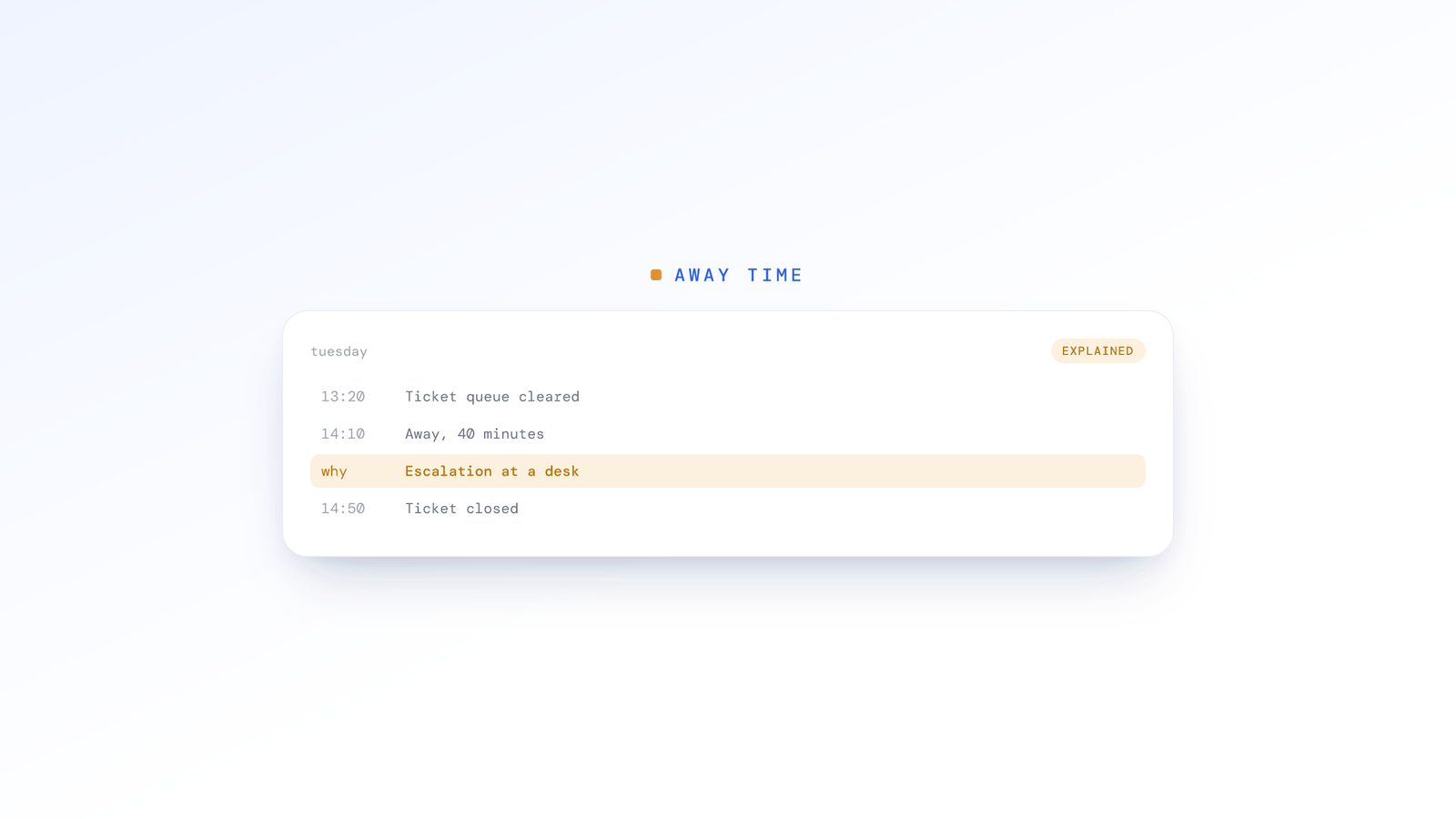
At ten past two on a Tuesday, a support lead walks over to a colleague's desk to untangle an escalation. Forty minutes later the customer is happy and the ticket is closed. On the tracker, those forty minutes are a hole: no mouse, no keyboard, nothing on the screen that moved.
Most tools file that hole under "idle" and move on. The manager sees forty unproductive minutes. The employee sees a number that says they did nothing during the most useful part of their afternoon. Neither of them is looking at what happened.
ScreenJournal is an AI work visibility tool that reads on-screen work as it happens, turns it into a detailed timeline of what each person actually did, and then, by default, deletes the raw screen data. A record built from the screen has an obvious limit: it cannot see work that happens away from the screen. So the person who was there can now say what the gap was.
The Problem Is the Silence, Not the Gap
Every tracker can tell you that someone stopped touching their computer. None of them can tell you why. The why gets filled in by whoever reads the report, usually with the least generous guess available.
That does damage in two directions.
Managers end up asking about gaps one by one. "What were you doing between 2:10 and 2:50 last Tuesday?" is a miserable question to ask and a worse one to answer a week later.
Employees learn that the only safe state is visible motion. A tool that punishes every quiet stretch teaches people to keep the pointer moving. That is how a team ends up with mouse jigglers, and it is the opposite of what anyone wanted.
The fix is not to stop recording the gap. It is to record it accurately and let the person explain it on the record, where the manager can see both the explanation and who wrote it.
How ScreenJournal Decides Someone Is Away
Away time comes from the absence of purposeful pointer movement, clicks, scrolling or key presses. It has nothing to do with what was typed: ScreenJournal does not log keystrokes in any mode.
Three things are worth knowing:
- The threshold is one number. An organisation sets how long a machine can sit without input before the person is marked away. The default is three minutes, and the same number is used for presence, alerts and away time on the timeline.
- The absence is backdated honestly. Away time starts when the input stopped, not when the threshold was crossed.
- An optional heads-up. An organisation can turn on an "Are you still there?" notice. It appears shortly before the away point, a minute before by default, has no buttons, and closes on its own as soon as the person moves the mouse, clicks, scrolls or types. It is a warning that the clock is about to mark you away, not a quiz.
Each kind of gap is shown as what it was:
| What happened | What the timeline shows |
|---|---|
| No input past the away threshold | An Away card, or away time nested inside the card it interrupted |
| The member paused tracking | A Tracker Paused row |
| The machine slept or lost its connection | A Device Asleep / Offline row |
| The screen was locked | A locked stretch, counted as away only where the organisation chooses |
By default, away time is reported inside unproductive hours. For a tool that reads screens, that is a reasonable starting assumption. It is also exactly why the next part matters.
Add a Reason: The Person Who Was There Says What Happened
Where an organisation allows manual timeline entries, every paused, offline or away stretch carries an Add a reason button, in the desktop app's Timeline and on the web Activity page. The person types what was happening and saves it as Productive or Unproductive.
The support lead from the opening writes "Escalation with Dev at his desk, ticket closed", marks it Productive, and the forty-minute hole becomes forty minutes of explained work.
The rules are deliberately tight:
- The time range is fixed to the gap. You explain the hole that exists. You cannot draw a new one.
- The entry goes around tracked activity, never over it. If the screen recorded something in those minutes, the record stands.
- An entry cannot be deleted. Its reason can be edited later, and that is all.
- One stretch, one reason. Away time that ran across several analysis chunks shows as a single Away card, so one reason covers the whole of it.
The Unproductive option is there on purpose. "Long lunch, back at 2" is an honest entry, and an honest entry is worth more to everyone than a blank.
Clearing a Day Without Forty Clicks
Nobody wants to annotate their day gap by gap, so there are two shortcuts.
Add reasons appears when two or more stretches still need a reason. Tick the ones that belong together (nothing is ticked for you), type one reason, pick one verdict. Three short gaps that were all the same client workshop take one sentence, not three.
Needs a reason lives in the desktop app's Inbox tab. It lists today's unexplained away, paused and offline time under any alerts, and the red number on the tab counts them all. The Timeline tab has a matching Needs reason filter. The app does not nag about any of it: notifications and reminders are kept for alerts.
What the Manager Sees
An explained gap is not a hidden gap. Everything a person writes is visible to the people who can already see their timeline.
- On Activity, hand-added time appears as a Manual Entry row with its reason, and a Manual filter chip shows only those rows.
- On Review, the Untracked case lists every stretch a reason can still be added to, which makes it a to-do list of unexplained time, and the Manual case lists every entry added by hand.
- In the Excel productivity report, entries saved as Productive are counted inside Active hours and broken out as Productive Manual Hours, so a reader can always tell time read from the screen apart from time explained by a person.
Managers can explain time too. An admin, the member's team manager or their reporting manager can add the reason on a member's timeline, which is useful when the whole team was at the same offsite and nobody should have to type it eight times.
Before: "Tuesday shows 1h 50m unproductive. What were you doing?"
After: "Tuesday has two manual entries: 40 minutes, 'Escalation with Dev at his desk, ticket closed', and 25 minutes, 'Fire drill'. Nothing to ask."
The Guardrails
A feature that lets people write part of their own record needs limits. These are built in:
- It is off until an admin turns it on. Manual timeline entries are a desktop policy setting, for the whole organisation or for particular teams.
- Only real gaps can be explained. The range is fixed, and tracked activity is never overwritten.
- Entries are permanent. The reason can change. The entry cannot disappear.
- Manual time is labelled everywhere. On the timeline, on Review and in the exports.
- It cannot paper over suspected faking. Nobody can add a reason over their own jiggler-flagged time. We cover how that screening works in a flag is not a verdict.
The result is a record with two kinds of time in it, clearly marked: what the AI read from the screen, and what a named person said about the rest.
Setting It Up
Everything lives under Organisation settings → Desktop policy → AFK & jiggler detection:
- Idle duration before marked away (default three minutes)
- Enable "Are you still there?" prompt, with its notice lead time
- Count time with the screen locked as AFK, a reporting setting that is off by default and also applies to past days once on
- Allow manual timeline entries
Then tell the team three things: what counts as away, that a gap can be explained in a sentence, and that explanations are visible and permanent. The Activity Timeline guide has the step-by-step version.
Frequently asked questions
What counts as away time in ScreenJournal?
A stretch with no purposeful pointer movement, clicks, scrolling or key presses that lasts longer than the organisation's away threshold, three minutes by default. Away time shows on the timeline as an Away card and is reported inside unproductive hours until someone explains it. Paused, offline and asleep stretches are shown as their own rows.
Can an employee explain time away from the keyboard?
Yes, where the organisation allows manual timeline entries in its desktop policy. A paused, offline or away stretch then carries an Add a reason button in the desktop app and on the web timeline. The person says what was happening and saves it as Productive or Unproductive. The time range is fixed to the gap, and the entry cannot be deleted afterwards, only its reason changed.
Does an explained gap count as productive time?
If it is saved as Productive, yes. Manual entries scored as work are counted inside Active hours and appear in the Excel productivity report under Productive Manual Hours, so anyone reading the report can see how much of the day was explained by hand rather than read from the screen.
Does a locked screen count as away?
Only if the organisation chooses. Counting time with the screen locked as AFK is a reporting setting in the desktop policy, off by default. Where it is on, locked stretches are treated as away time and can be given a reason like any other gap, and the setting applies to past days too.
Can someone explain away time that was flagged as a mouse jiggler?
No. Nobody can add a reason over their own jiggler-flagged time. A stretch that mixes flagged minutes with real work or ordinary away time still takes a reason, but the entry is written around the flagged minutes, never over them. Only a manager reviewing another member can add a reason to a stretch that is flagged from end to end.
The Record Should Include the Person
A work timeline is only fair if the person it describes can see it and answer it. Employees already see the same timeline and score their manager sees. Reasons add the missing half: a way to say "that gap was a meeting" before anyone has to ask.
It is also the practical route to monitoring a remote team without micromanaging. When the record explains itself, the conversation about last Tuesday does not need to happen.
Stop guessing. Start knowing.
Let AI turn screen data into clear insights. Start your 2 months free trial
Related Posts
A Flag Is Not a Verdict: How ScreenJournal Screens for Fake Activity
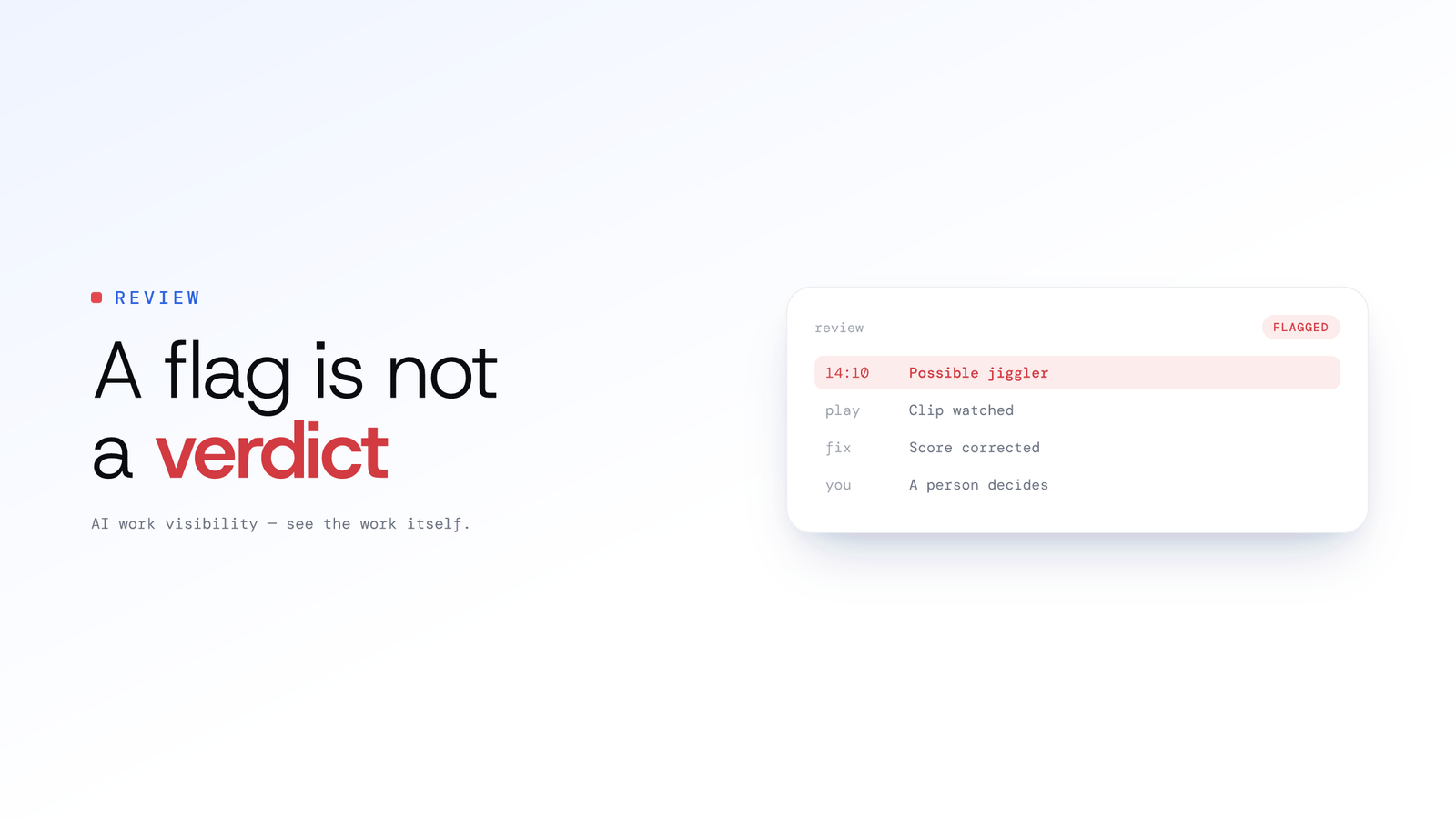
Mouse jigglers and staged screens are a real problem, and so is a tool that convicts people automatically. Here is how ScreenJournal flags suspected fake activity, shows the evidence, and leaves the decision to a person.
Beyond Screen Recording: Why Voice Analysis is the Missing Piece in Work Visibility
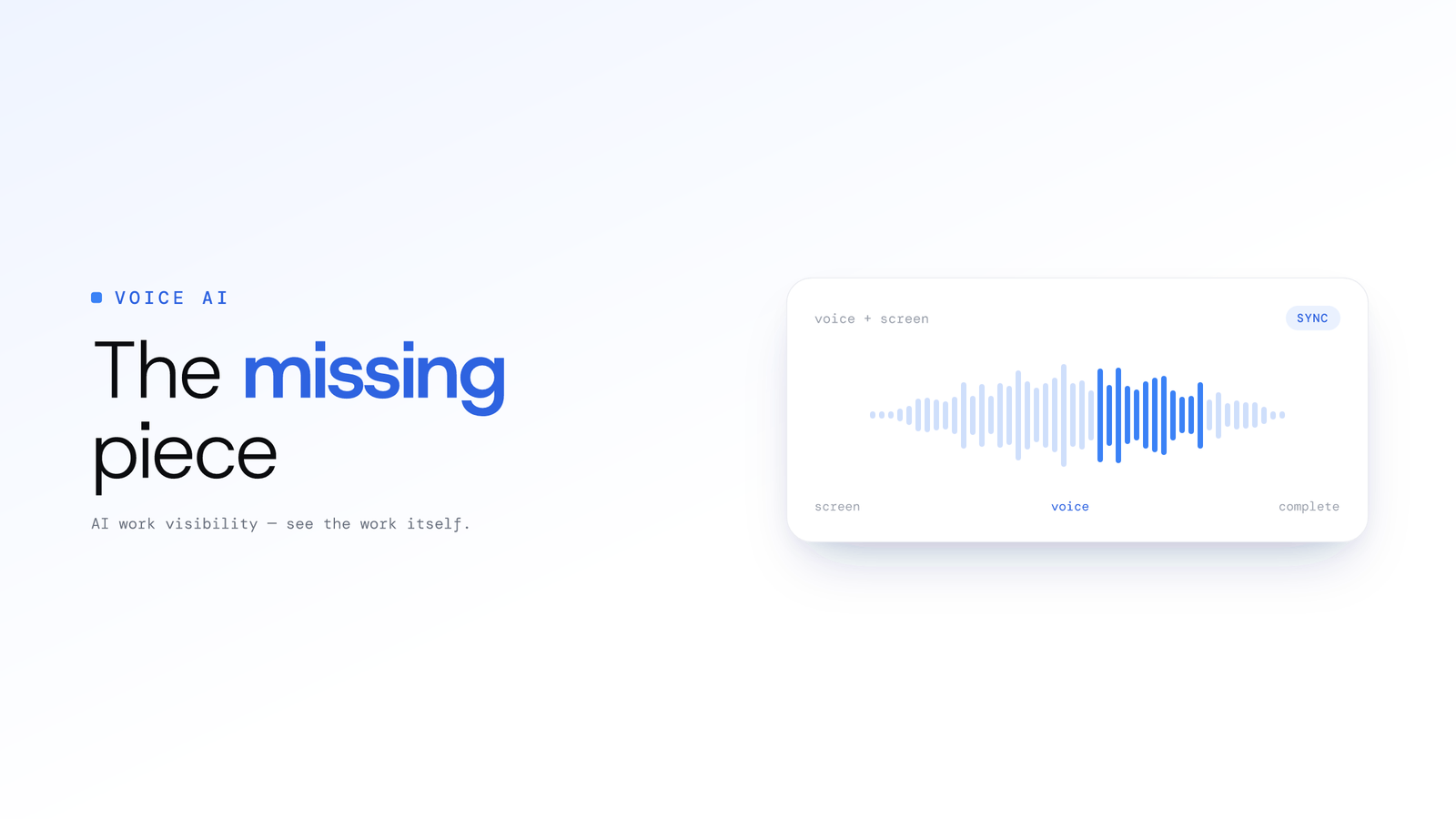
Most work visibility tools only read the screen. For call centres, sales teams, and support desks, the real work happens through voice. Learn how AI voice analysis closes the visibility gap, and how screen and call audio are handled differently.
Getting Started with ScreenJournal
Set up ScreenJournal in four steps, from creating your organisation to your team's first week of timelines, for work visibility that reads the work and, by default, deletes the raw screen data.