Getting Started with ScreenJournal
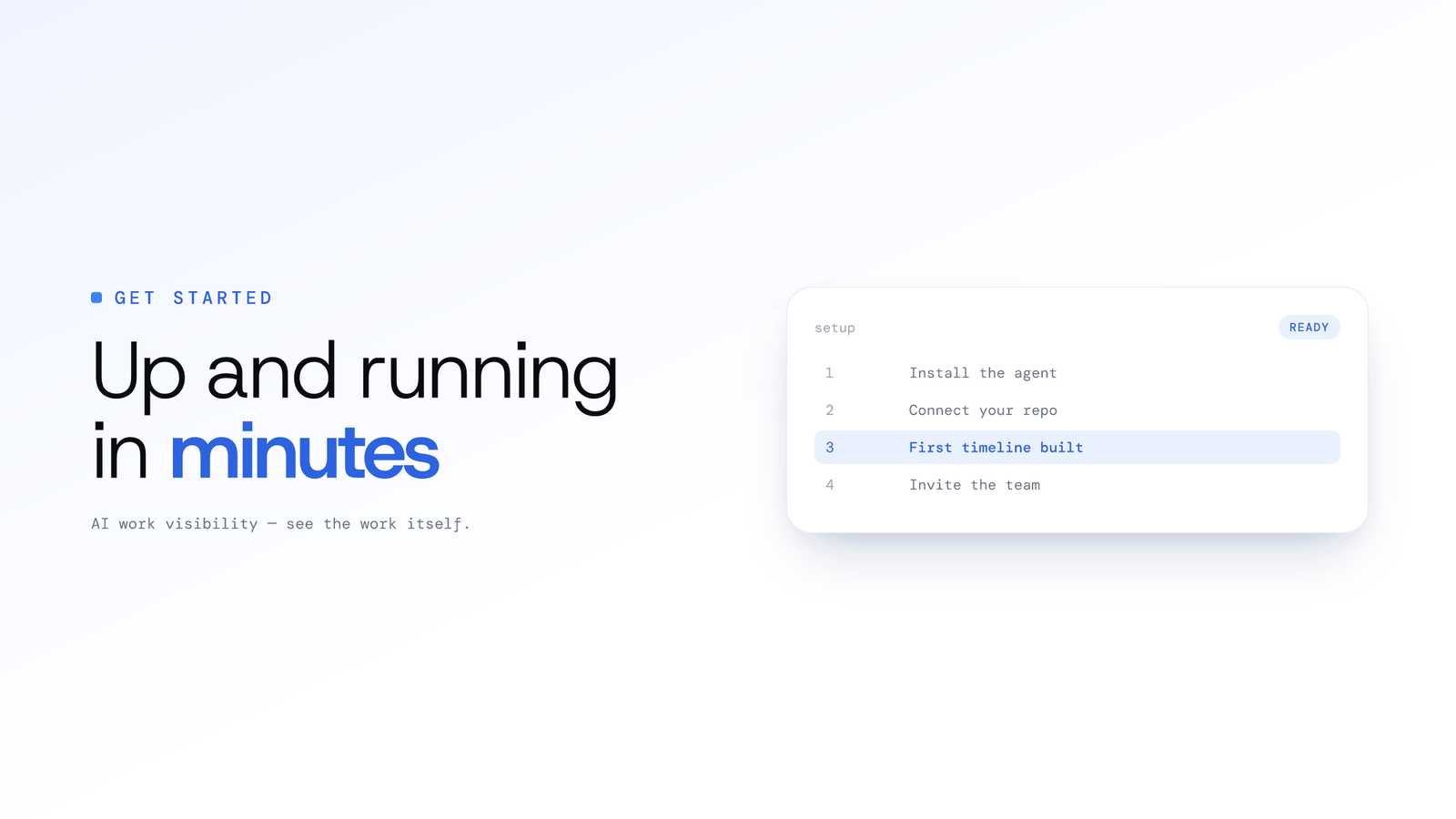
Set up ScreenJournal in four steps, from creating your organisation to your team's first week of timelines, for work visibility that reads the work and, by default, deletes the raw screen data.
Getting Started with ScreenJournal
Updated on 6 October 2026
Understanding your team's work shouldn't mean drowning in dashboards or playing surveillance games. ScreenJournal is an AI work visibility tool that reads on-screen work as it happens, turns it into a detailed timeline of what each person actually did, and then, by default, deletes the raw screen data. Timelines accumulate into a searchable chronicle of everyone's work history, and from them ScreenJournal generates timesheets and reports automatically and drafts standup summaries on request, answering questions about any of it in plain English.
Why ScreenJournal?
Traditional tools create two problems:
- For managers: Dashboard overload with raw data you have to interpret yourself
- For employees: Feeling surveilled instead of supported
ScreenJournal solves both:
- AI Work Visibility - Continuous reading of on-screen work analysed by AI, not random screenshots
- Overview and Ranking - A team view that reads the day, week or month for you, not raw data to decode
- Transparent Scoring - Employees see their own timeline and score and understand them
- Alerts - Rules you write in plain language, with a nudge to the person and their explanation back to you
Key Features
1. AI Work Visibility
Unlike screenshot monitoring that captures moments, ScreenJournal reads on-screen work continuously and uses AI to understand the full picture, then, by default, deletes the raw screen data during processing. What is retained is the derived timeline, not footage, unless a manager has opted in to keep video evidence through Evidence Mode:
- Multi-display support reads all work activity
- Frontier AI models analyse patterns and behaviour
- Context-aware understanding of different roles
- Automatic processing that writes a timeline and, by default, discards the raw screen data during processing
Why this matters: Employees can't game random screenshots by staging "productive" screens. The AI reads the complete work pattern.
2. Productivity Score
The AI rates every recorded segment on a five-point scale, shown as a colour on the timeline:
| Rating | What it means |
|---|---|
| Productive (4–5) | Work in work tools, judged by what was actually on screen |
| Neutral (3) | Reference, communication, admin |
| Low productivity (2) | Mostly non-work in the segment |
| Distraction (1) | Entertainment, social media, personal browsing |
A day's Productivity (%) is weighted productive hours divided by an 8-hour workday: productive counts 1, neutral 0.5, unproductive 0. The same number appears on Activity, Overview, Ranking and in every export, so nobody argues about which figure is right.
Correctable, not opaque: an admin can correct a single segment's score, and standing correction rules ("time in Figma is always productive for the Design team") apply to new activity as it arrives. There is no keyboard or mouse "intensity" measure and no per-role normalisation: the score reflects what the AI saw on screen.
3. Overview, Ranking and Reports
Instead of a pile of charts, ScreenJournal gives you three views that read the record for you:
- Overview - The landing page. Team KPIs for a day, week or month, the split of active, unproductive, paused and offline time, an attendance calendar, app usage, and a per-member breakdown you can drill into
- Ranking - The weekly league table: average productivity, active hours and attendance per member, with an AI-written summary of each person's week
- Reports - Downloadable Excel workbooks (Productivity, Attendance, App usage) with a live preview of what the file will hold
- The Assistant - A chat panel that answers plain-language questions from the real record, scoped to what you're allowed to see
The AI does the reading; you make the decisions.
4. Alerts and Review
Alerts are rules you write yourself, in plain language: "Alert if an agent opens YouTube during their call window." When the AI finds a match, the person gets a nudge on their desktop and can reply with an explanation; you review explanations in the Alerts inbox and approve or reject them. Suppression rules keep nudges quiet during meetings and calls. Nothing fires unless you write a prompt.
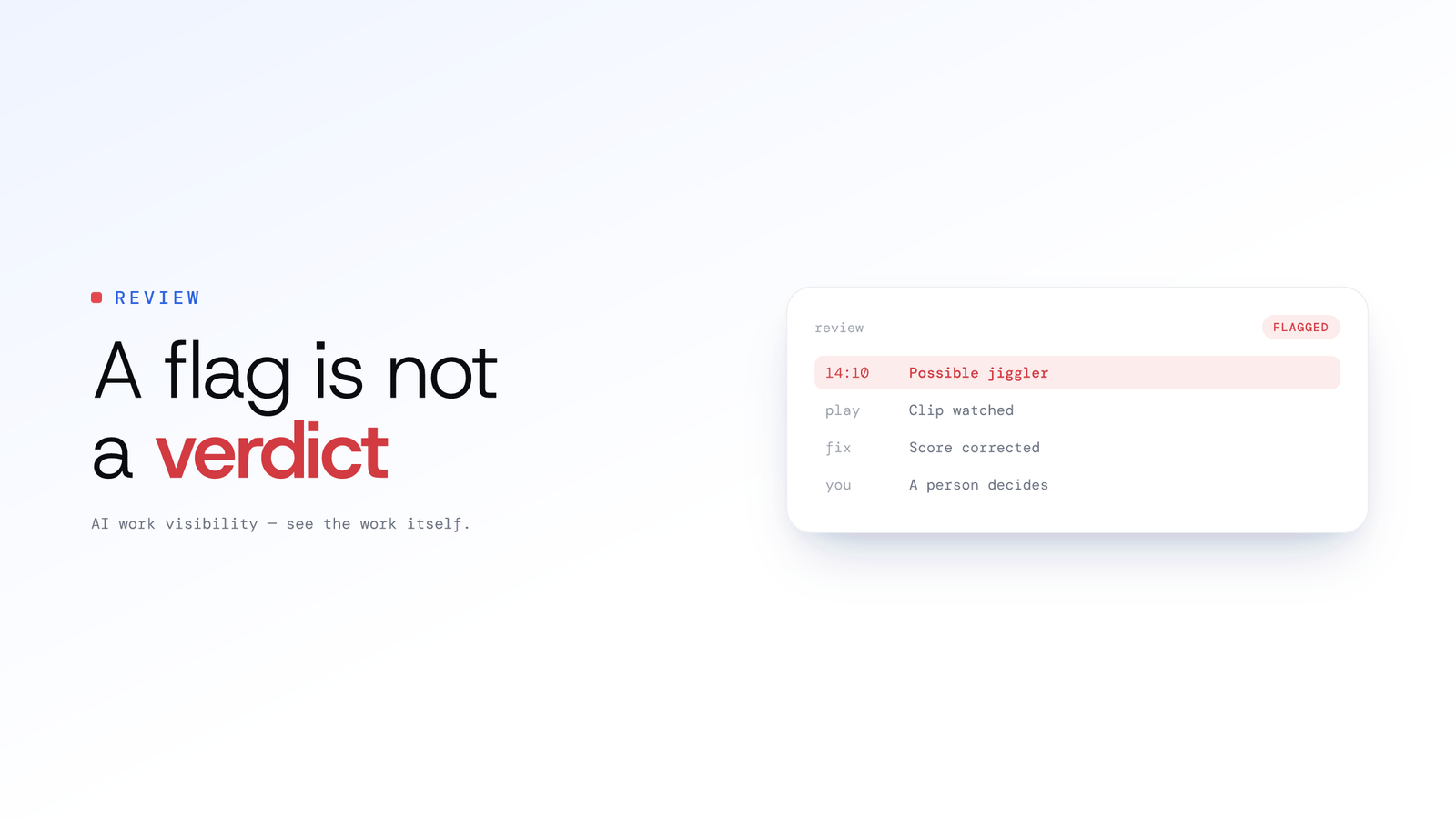
The Review page lists one member's segments worth a second look over any period - suspected fake activity and mouse-jiggler time, unproductive or neutral time, locked and untracked stretches, manual entries and corrections - so a manager can work through them in one sitting, with the recording alongside where your organisation keeps one. A flag there is a prompt to look, not a penalty: see how ScreenJournal screens for fake activity. Where you allow manual entries, people can also add a reason to away time themselves.
5. Meeting and Call Transcripts (optional)
For teams where work happens through conversations, call centres, sales teams, support desks, ScreenJournal can also record and transcribe meetings and calls. It is off by default. An owner or admin turns it on in the desktop policy, choosing whether to keep the audio for playback or the transcript only, and must accept the Call-Recording Addendum first. Once on, the desktop app records when a recognised meeting app opens the microphone and, where an admin has listed webinar apps or sites, records those webinars in full while they play. The Audio page shows each recording with a searchable transcript and a player. If you run a call centre or outsourced team, see BPO and call centre monitoring.
Members acknowledge the Workplace Monitoring Notice when they sign in to the desktop app, the app shows when a meeting or webinar is being recorded, and they can turn meeting capture off in the app unless your organisation requires it. The lists of meeting and webinar apps are managed by an admin.
Setting Up Your Team
Step 1: Create Your Organisation
Sign in to the web app with your work email (there are no passwords: you get an emailed link, with a six-digit code you can type instead). A short wizard names your organisation, asks you to accept the service documents on its behalf, sets its timezone (the clock every day is cut on) and lets you invite people straight away. Then, before anyone installs anything:
- Working calendar: which days count as working days, plus holidays and per-team overrides, so weekends never count as absences
- Desktop policy: what members' apps may do - screen capture mode, whether tracking can be paused or stopped, whether meeting audio is recorded, which sensitive apps and sites are never captured
Step 2: Invite and Install
Invite people from the People page by email or with a shareable link. Enforce app installation is on by default for employees: they open the invitation, install the app on their Mac or Windows machine first, then sign in from the app to create their account and join. Other roles sign up on the web and are offered the download at the end:
- Supported Platforms: macOS (Apple Silicon and Intel) and Windows
- System Impact: Minimal CPU/memory usage
- Processing: short segments are analysed in the background; by default the raw screen data is discarded once the timeline entry is written
They acknowledge the monitoring notice at sign-in, grant the macOS permissions if asked, and press play. On the People page the Setup column moves from Signed up through Downloaded to Installed once their app has checked in, and anyone stuck can be sent a download reminder from their row.
Step 3: Communicate with Your Team
Transparency is essential for building trust:
Tell your team:
- What ScreenJournal reads (on-screen work) and what happens to the raw screen data
- What the AI writes down (a plain-English entry per segment with a productivity rating, not keystrokes or message content)
- How the productivity score works, and that they see exactly what their manager sees
- What the desktop policy allows: pausing, stopping, and whether audio is on
Emphasise the benefits:
- Fair, objective evaluation
- A record that answers "what did I do?" for them too
- Transparent methodology they can understand
- Focus on improvement, not punishment
Step 4: Read the First Week
Timelines start about 15 minutes after each person presses play. Within a day or two:
- Overview fills in with the team's active hours, productivity and attendance
- Ranking gives you the first weekly league table on Monday
- Anything the AI scored wrongly can be corrected, and repeat offenders turned into correction rules
- Write your first alert prompt once you know what you actually want to be told about
Best Practices
Focus on Patterns, Not Policing
Use the timeline and reports to identify:
- Team-wide productivity trends
- Process bottlenecks affecting multiple people
- Training opportunities
- Workload balance issues
Avoid using data to micromanage or punish individual moments of inactivity.
Build a Weekly Rhythm
The power of ScreenJournal is in the record. Once a week:
- Open Ranking - Understand who's excelling and why
- Check Alerts - Review the explanations people sent you promptly
- Skim Overview - Attendance gaps and productivity bands show where to look
- Ask the Assistant - "Summarise Alex's week" beats reading every entry
Combine AI with Human Judgment
Data informs decisions but doesn't make them. Always:
- Talk to team members about concerning patterns
- Consider context the data can't capture
- Use insights to support, not just evaluate
- Celebrate successes identified by the AI
Frequently asked questions
How do I set up ScreenJournal for my team?
Create your organisation in the web app, set its timezone and working calendar, decide the desktop policy, then invite your team. Each person installs the lightweight desktop app, signs in, acknowledges the monitoring notice and presses play. Their first timeline entries appear about 15 minutes after recording starts, and the Overview and weekly Ranking fill in from there.
Is my screen data stored?
Not by default. ScreenJournal reads on-screen work and deletes the raw screen data during processing, so what it keeps is the derived timeline of what you did, not footage or a screenshot archive. A manager can opt in to keep video evidence for the organisation or a team, and those recordings are stored for up to 3 months. Otherwise you get the intelligence without your company warehousing screen recordings that could later leak.
Can employees see their own data?
Yes. Every team member sees the same activity timeline and productivity score their manager sees, entry by entry, in the desktop app and the web dashboard. If something was untracked they can add a reason, and an admin can correct a score that looks wrong. Transparency is the point: the tool is built to coach, not to catch people out.
What does ScreenJournal analyse on screen?
It reads the work itself, which app you are in and what you are doing, and summarises it in plain English. Personal activity is skipped in real time and any PII is removed during processing, so the timeline records your work, not your keystrokes, messages or private documents.
What if someone works unusual hours?
Set the organisation's working calendar, with per-team overrides where a team keeps different days, and set normal work hours per person on the Timesheet. Attendance counts a person's own working days, and the productivity score rates what was on screen rather than the hour of the day, so a night-shift support agent and a nine-to-five developer are each judged on their own work.
What Sets ScreenJournal Apart
| Traditional Tools | ScreenJournal |
|---|---|
| Random screenshots | Continuous AI-read work timeline |
| Dashboards to interpret | An Overview that reads the week for you |
| Raw data dumps | Actionable recommendations |
| One metric for everyone | One transparent score, correctable by admins |
| Stored footage | Raw screen data deleted during processing by default |
Next Steps
Ready to transform how you understand your team's productivity?
- Start your free trial - See ScreenJournal in action with your specific use case
- Test with a small team - Pilot with a few team members first
- Read the fundamentals - See how the work timelines are built, what AI work visibility means in practice, and how derive-and-discard keeps the raw screen data from being stored by default
Stop guessing. Start knowing.
Let AI turn screen data into clear insights. Start your 2 months free trial
Related Posts
Away Is Not Absent: How Employees Explain Untracked Time
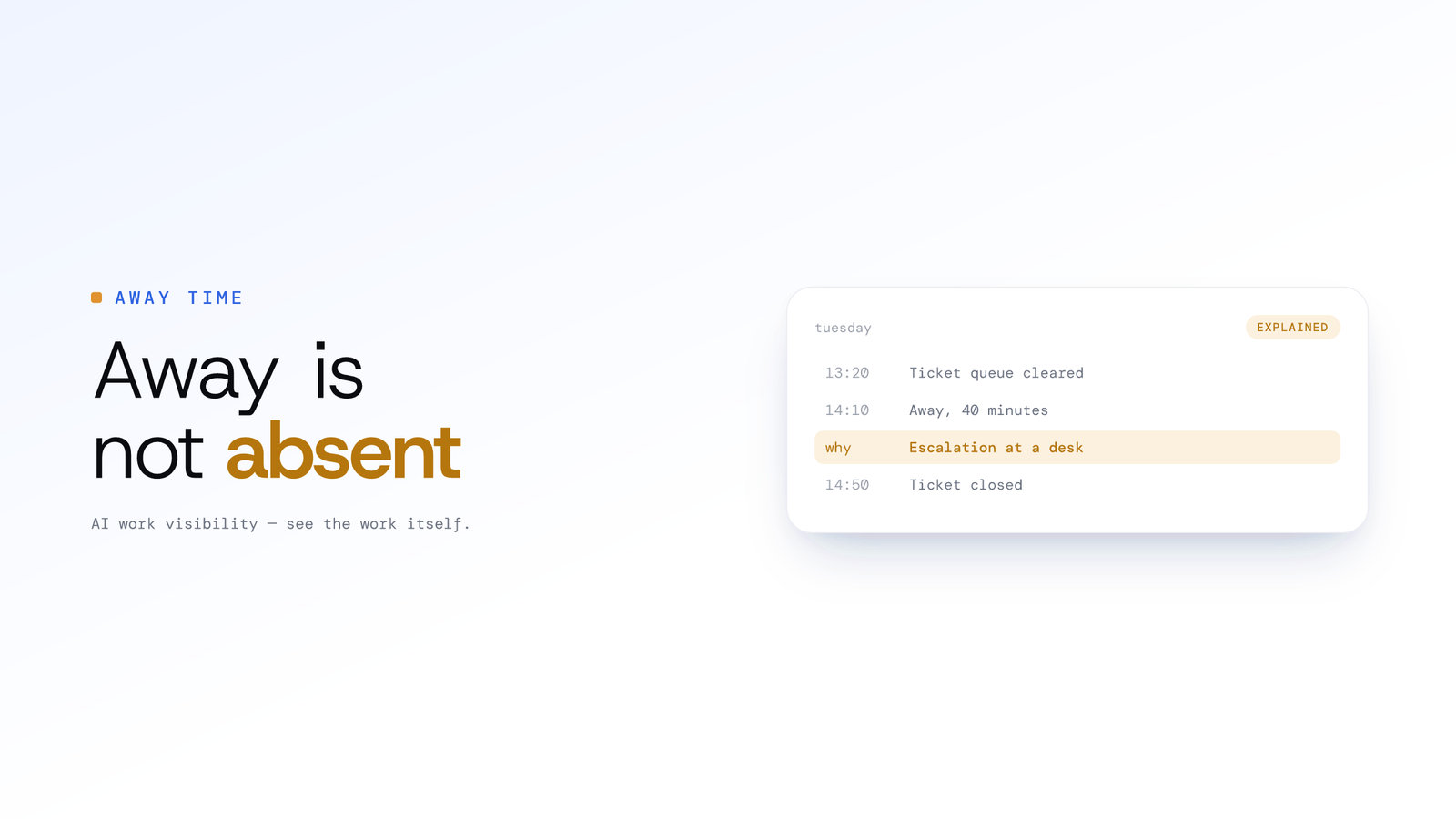
A whiteboard session, a phone call and a long lunch all look the same to a tracker: no input. Here is how ScreenJournal lets the person who was there say what the gap was, and what a manager sees when they do.
A Flag Is Not a Verdict: How ScreenJournal Screens for Fake Activity
Mouse jigglers and staged screens are a real problem, and so is a tool that convicts people automatically. Here is how ScreenJournal flags suspected fake activity, shows the evidence, and leaves the decision to a person.
Beyond Screen Recording: Why Voice Analysis is the Missing Piece in Work Visibility
Most work visibility tools only read the screen. For call centres, sales teams, and support desks, the real work happens through voice. Learn how AI voice analysis closes the visibility gap, and how screen and call audio are handled differently.